
Customer app
What the rider sees, from signing up to rating the driver.
1. Sign up
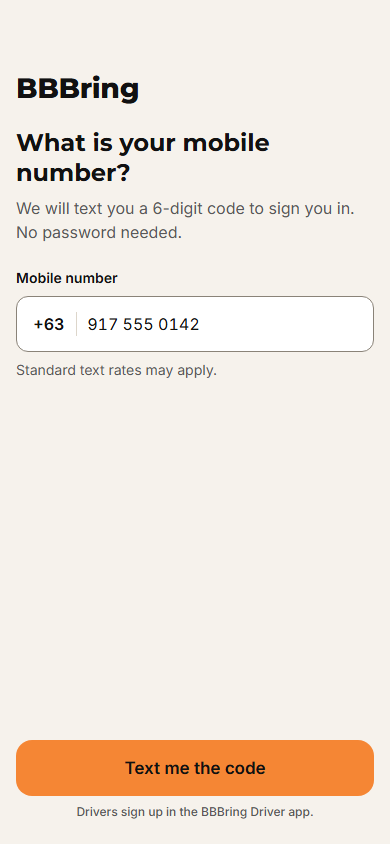
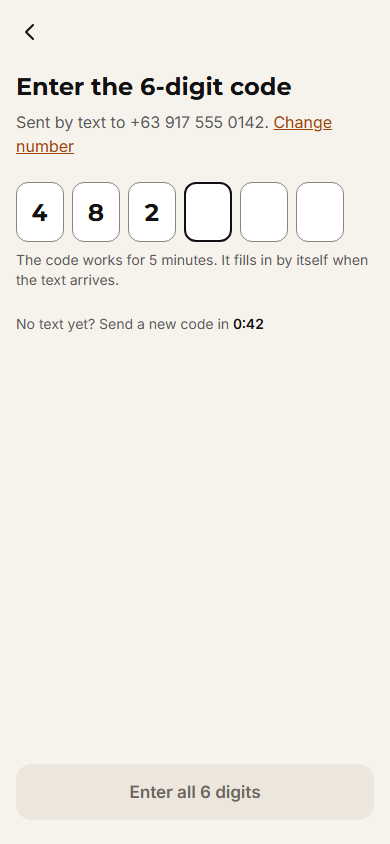
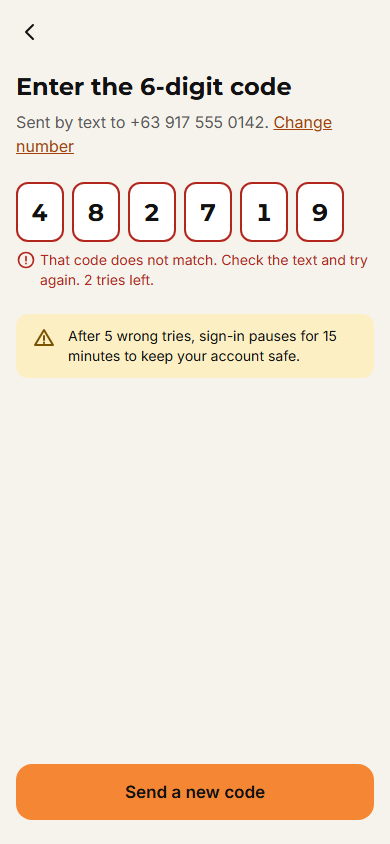
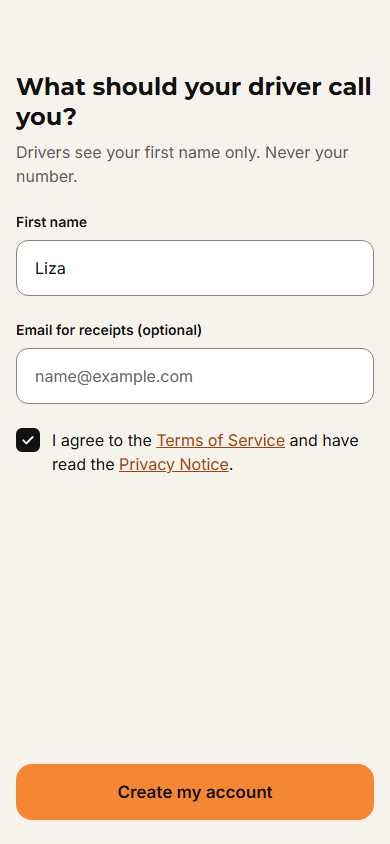
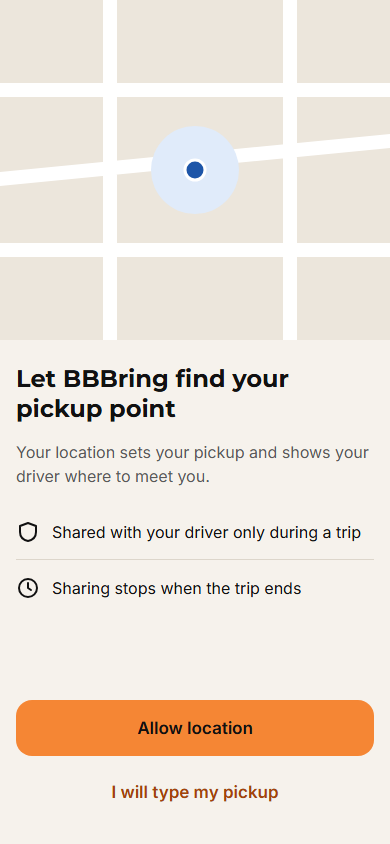
2. Book a ride
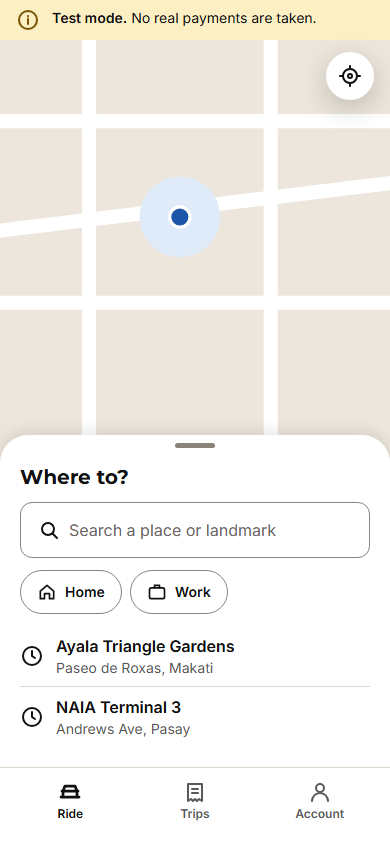 2.1 Home
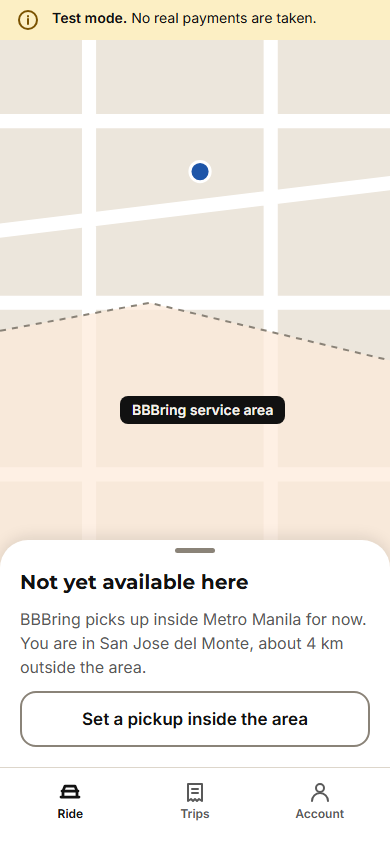 2.1 Outside service area
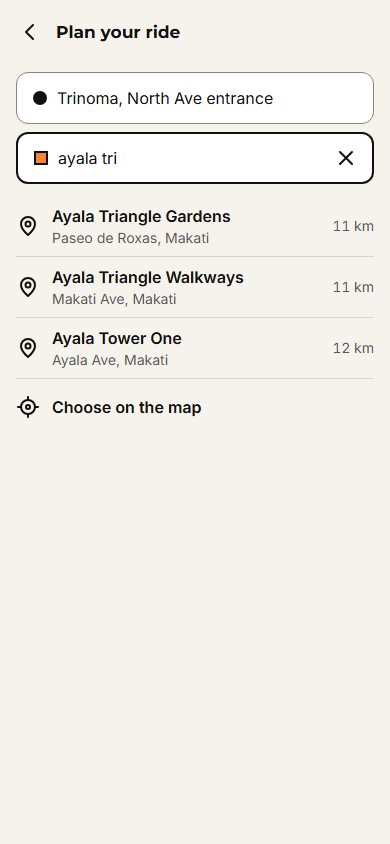 2.2 Search drop-off
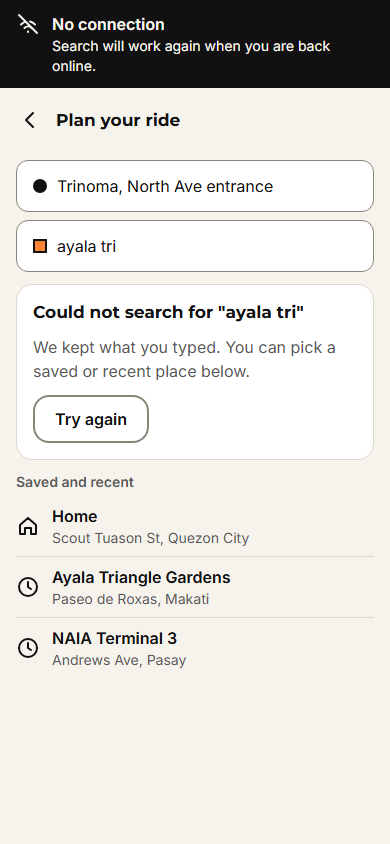 2.2 Search, no connection
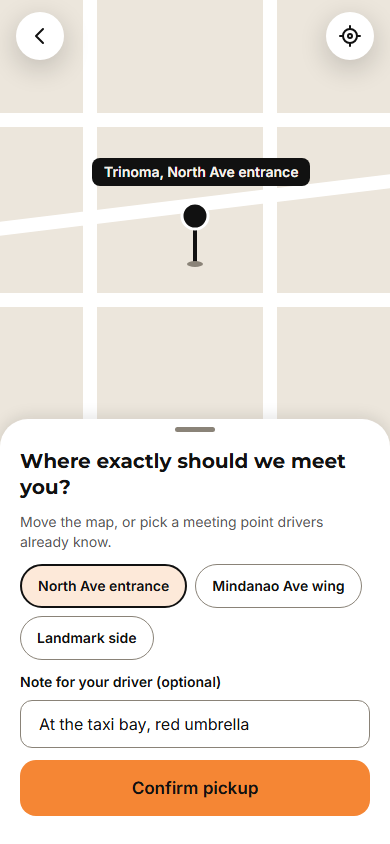 2.3 Adjust pickup
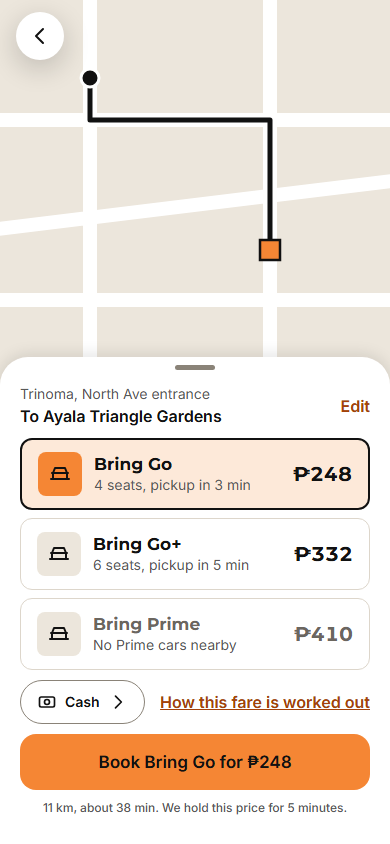 2.4 Choose ride
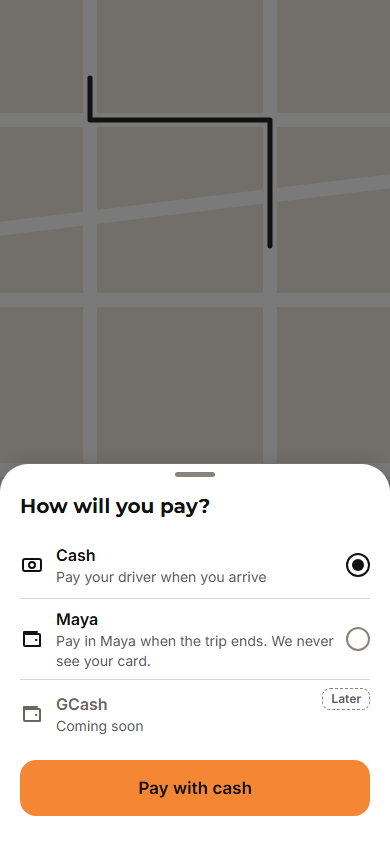 2.5 Payment method
3. The trip
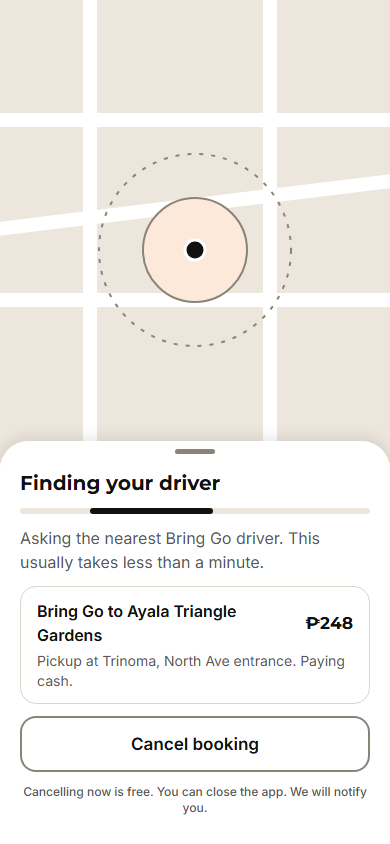 3.1 Finding a driver
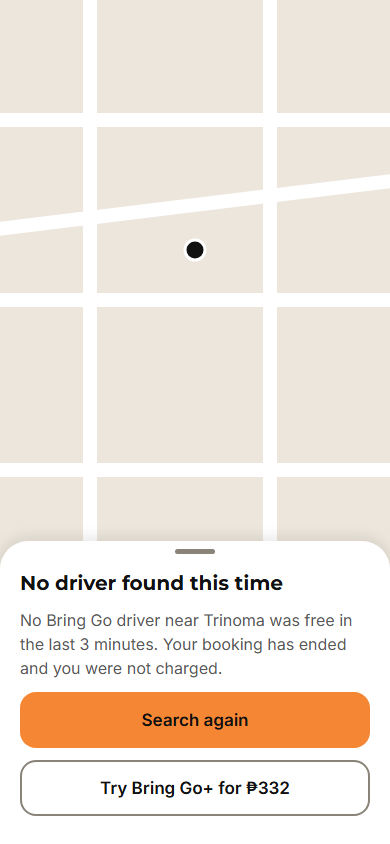 3.1 No driver found
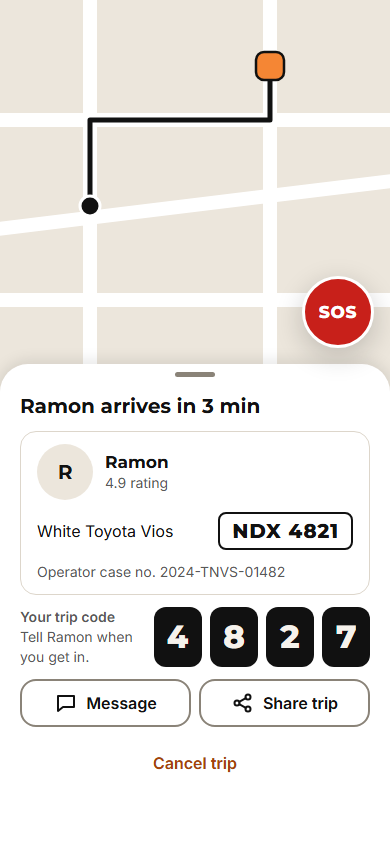 3.2 Driver on the way
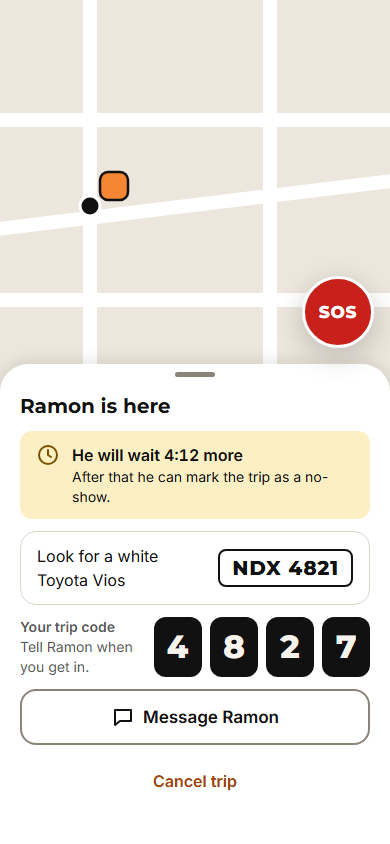 3.3 Driver arrived
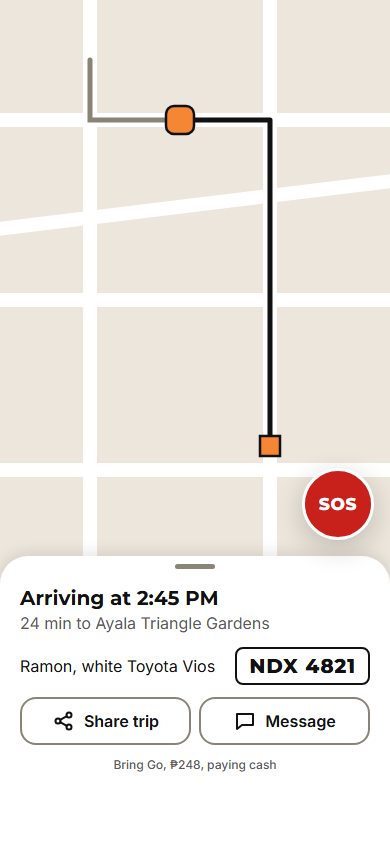 3.4 On trip
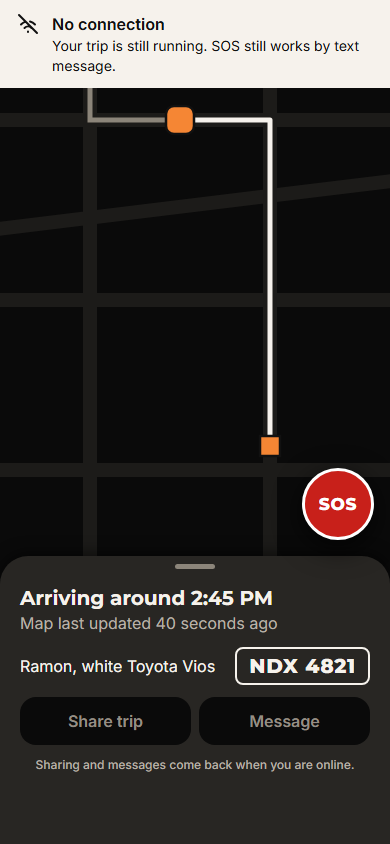 3.4 On trip, offline, dark theme
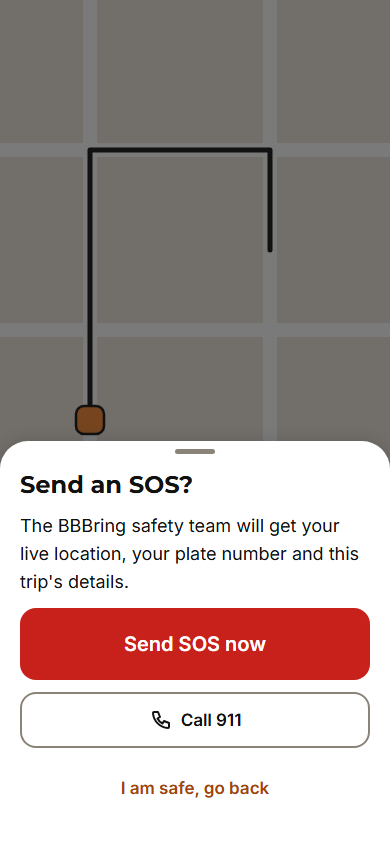
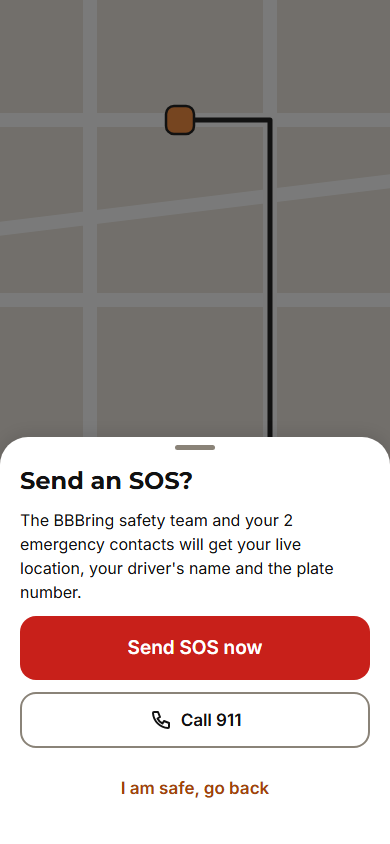 3.5 SOS confirm
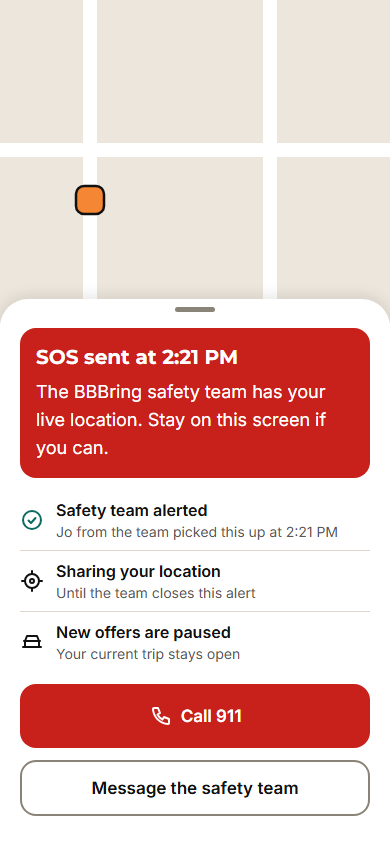
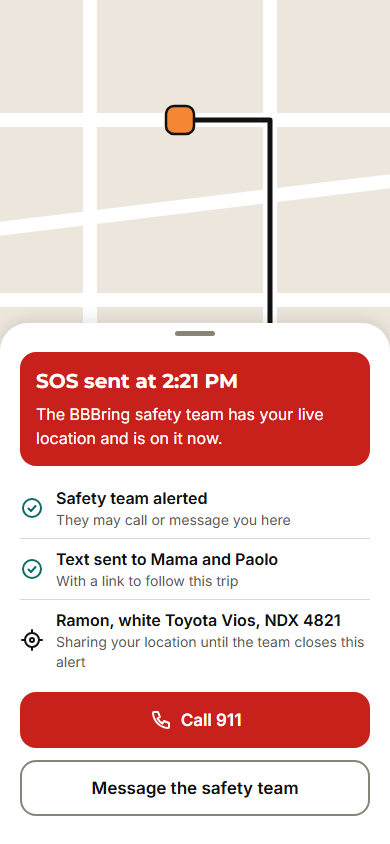 3.5 SOS sent
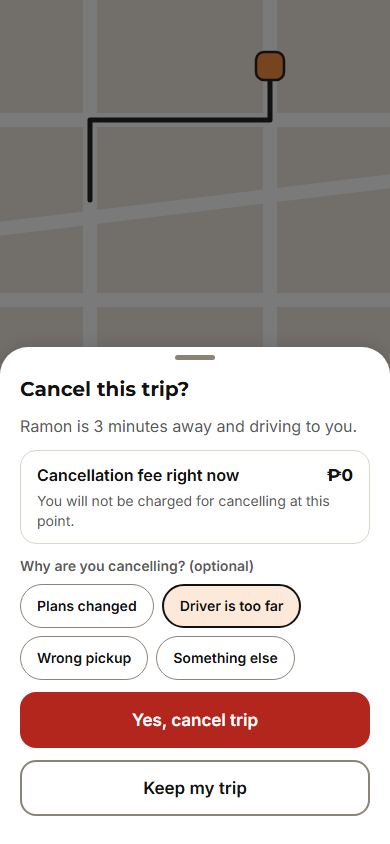 3.6 Cancel trip
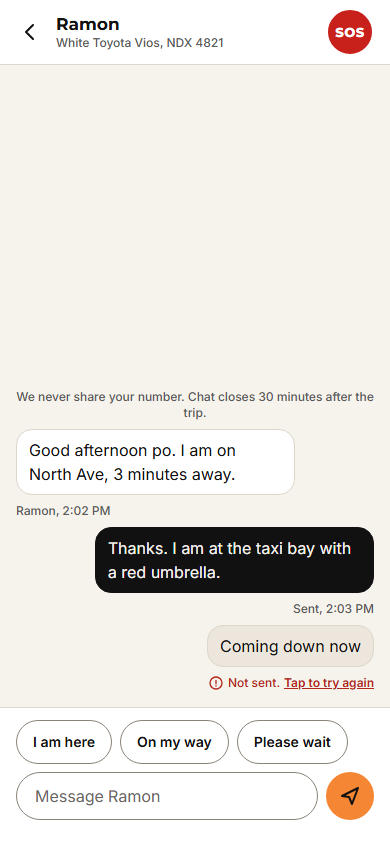 3.7 Message driver
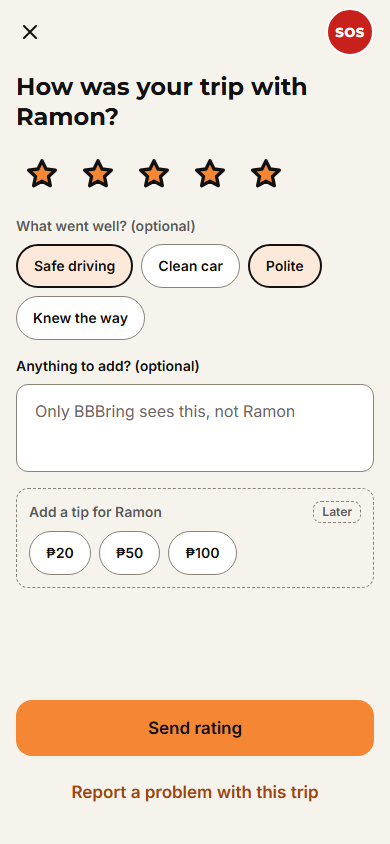
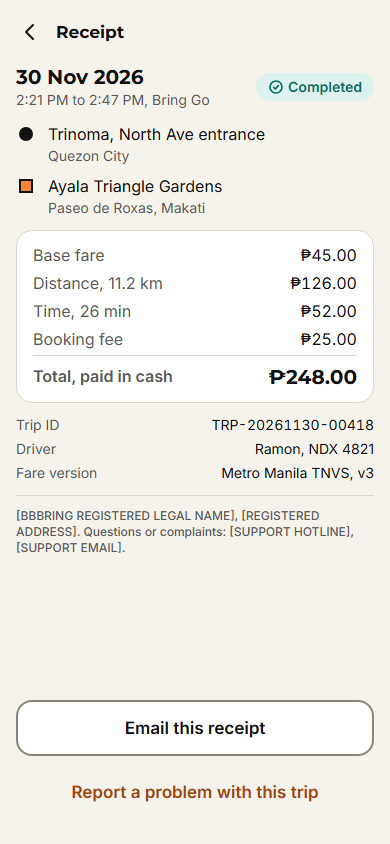
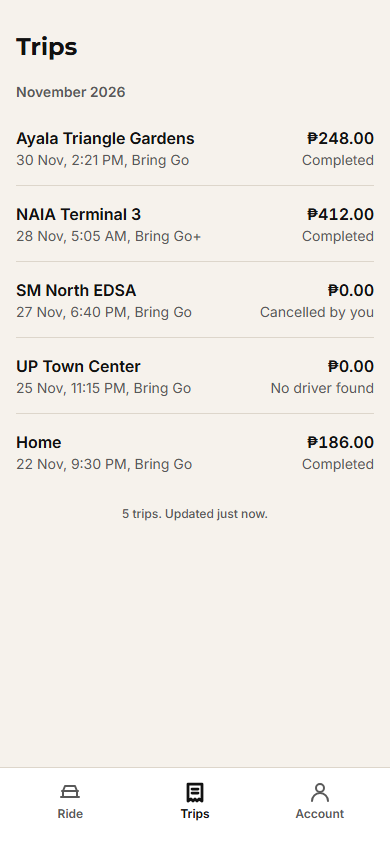
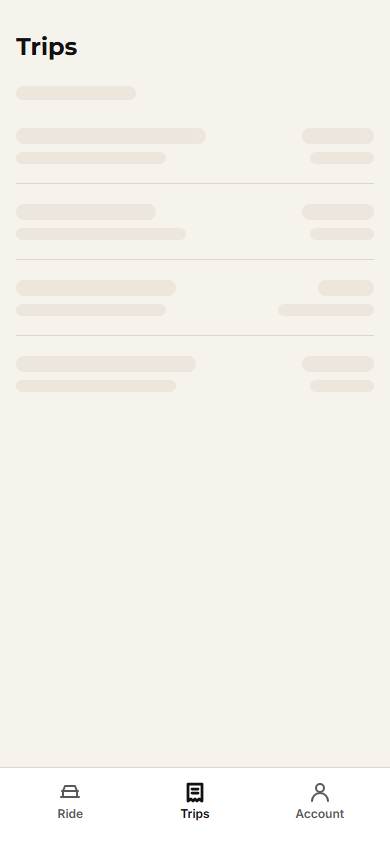
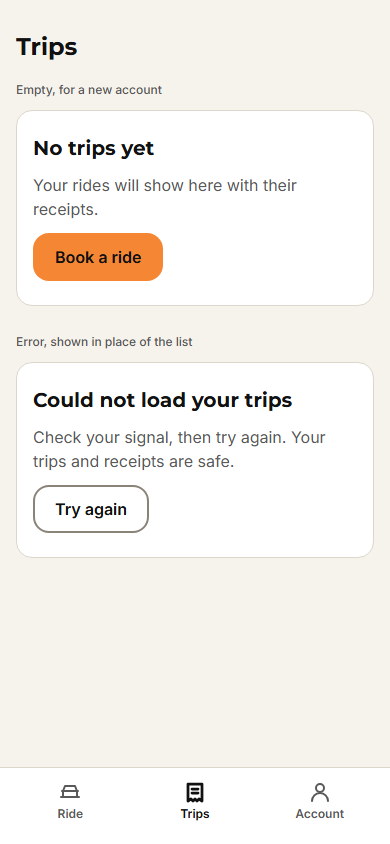
4. After the trip
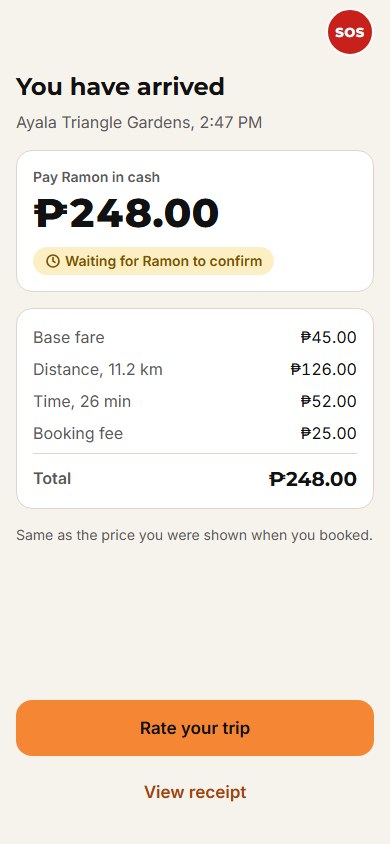
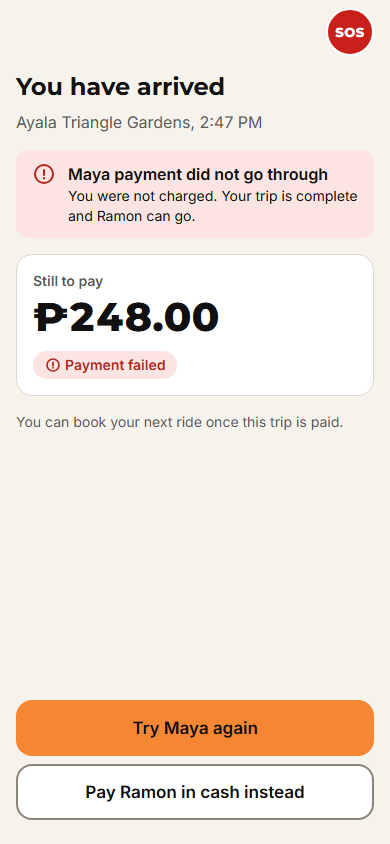
Driver app
What the driver sees, from the document checklist to earnings and SOS.
1. Sign up and documents
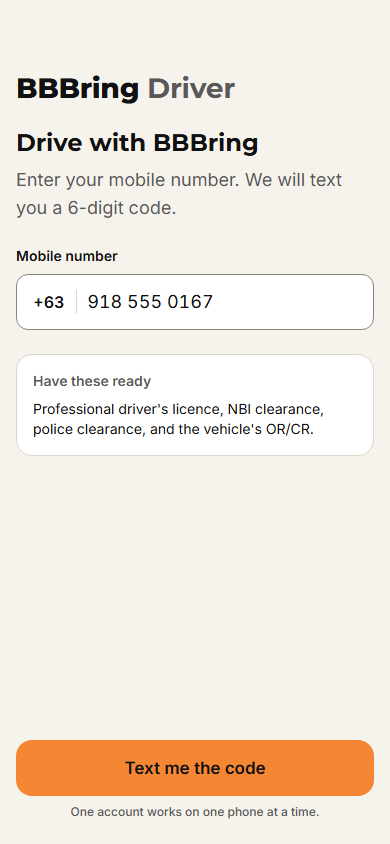 1.1 Phone number
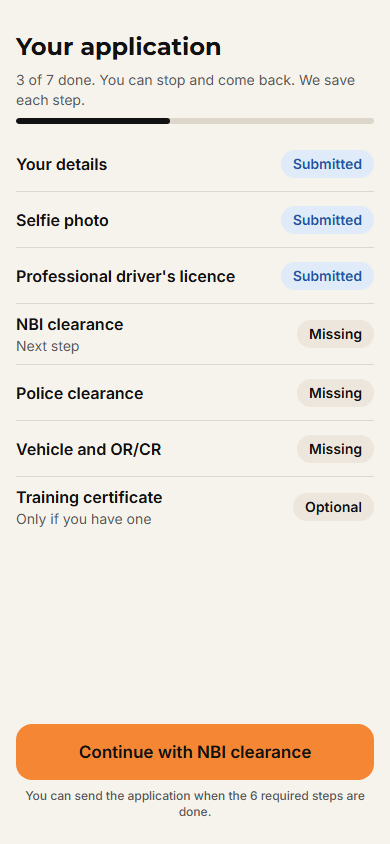 1.2 Application checklist
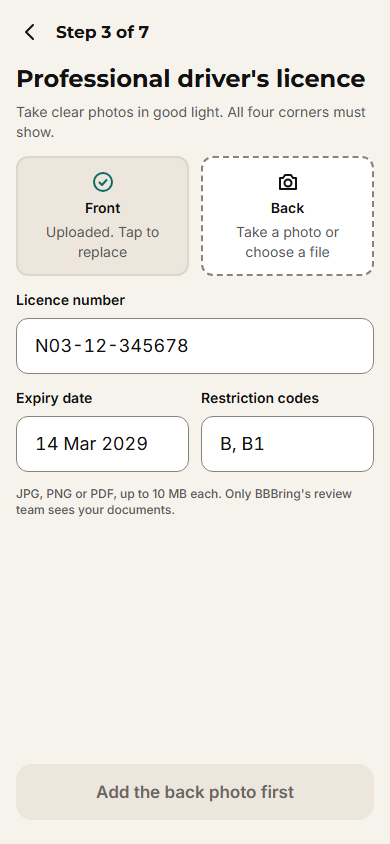 1.3 Driver's licence
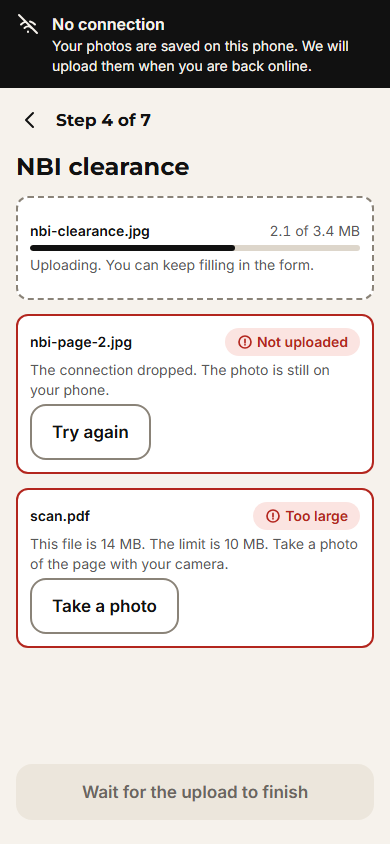 1.3 Upload states
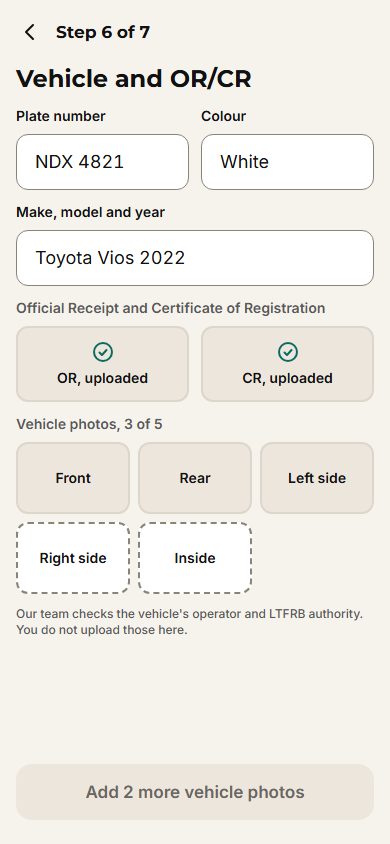 1.4 Vehicle and OR/CR
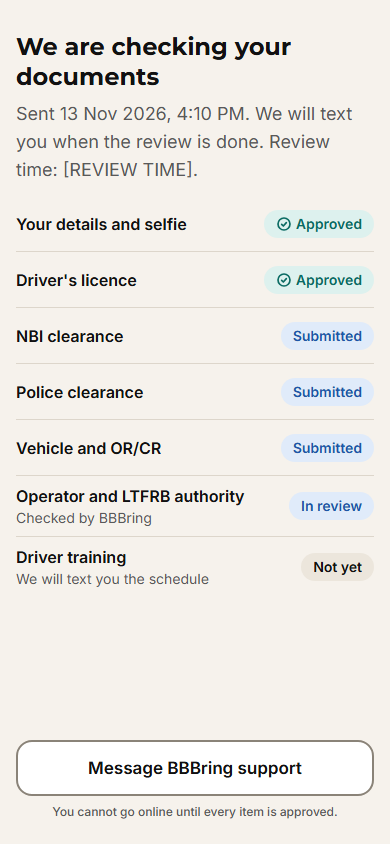 1.5 Waiting for approval
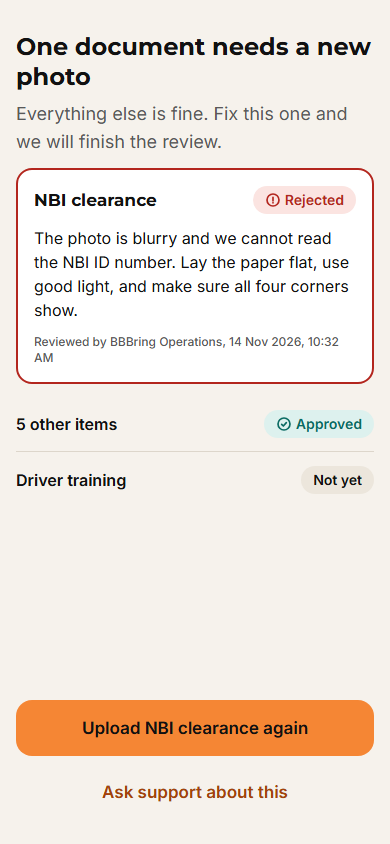 1.5 Document rejected
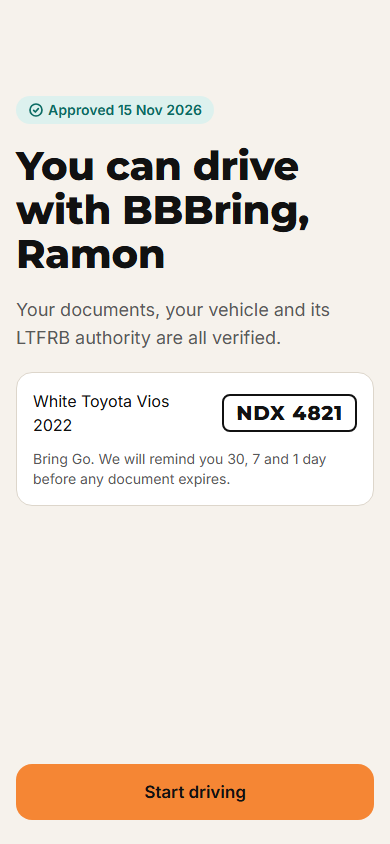 1.6 Approved
2. Go online and take an offer
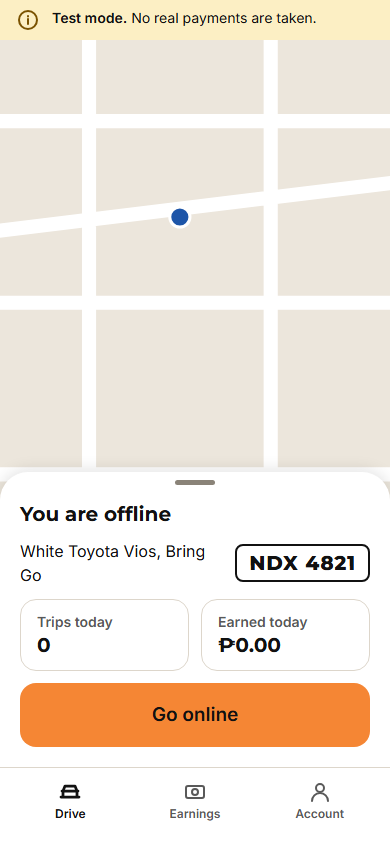 2.1 Home, offline
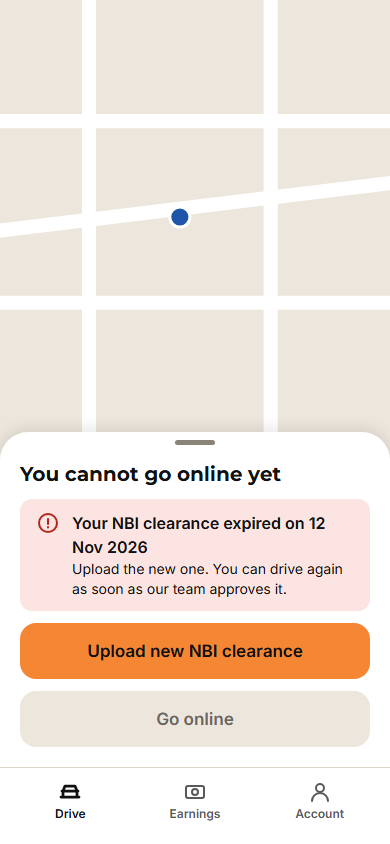 2.1 Cannot go online
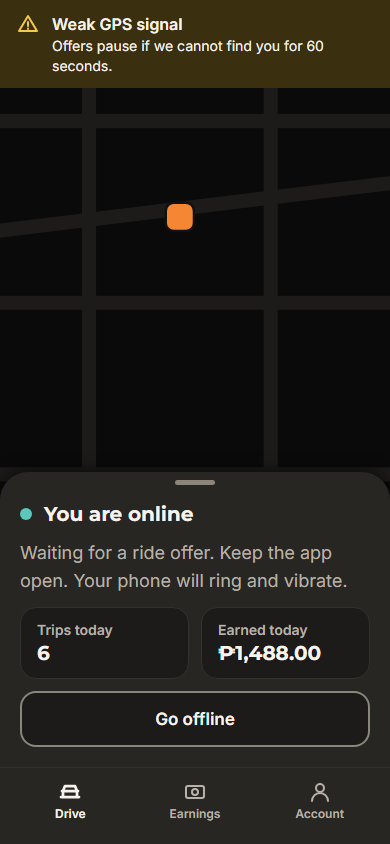 2.2 Online, waiting, dark theme
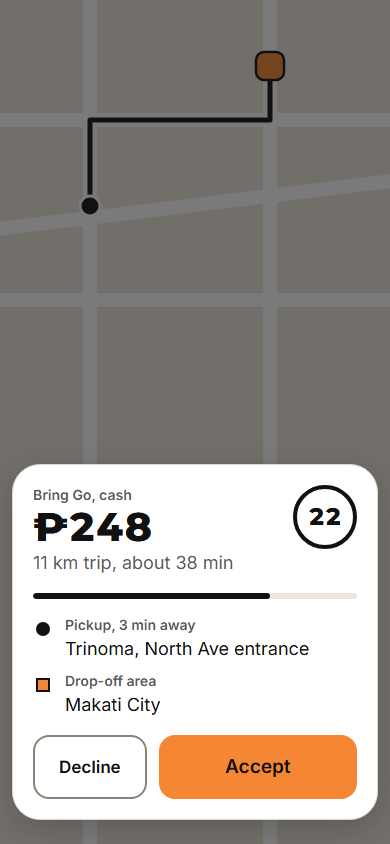 2.3 Incoming offer
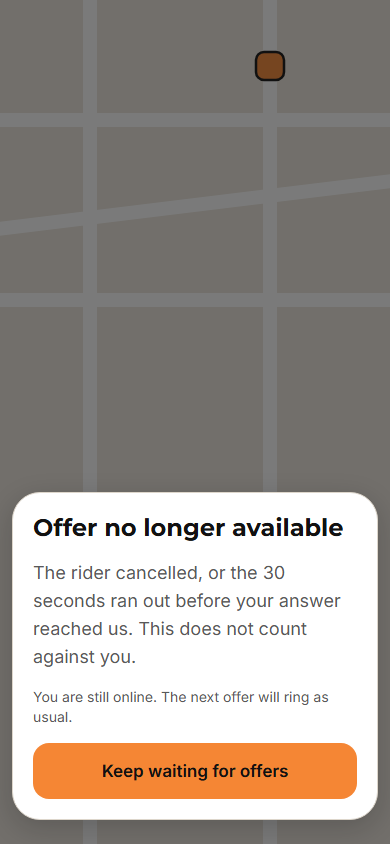 2.3 Offer no longer available
3. The trip
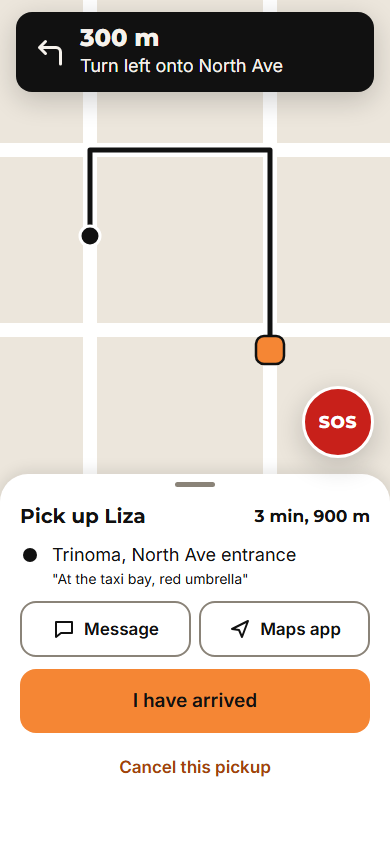 3.1 Drive to pickup
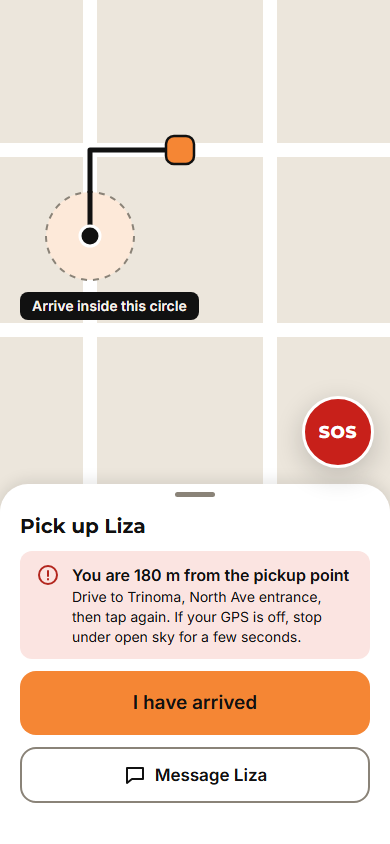 3.1 Not at pickup yet
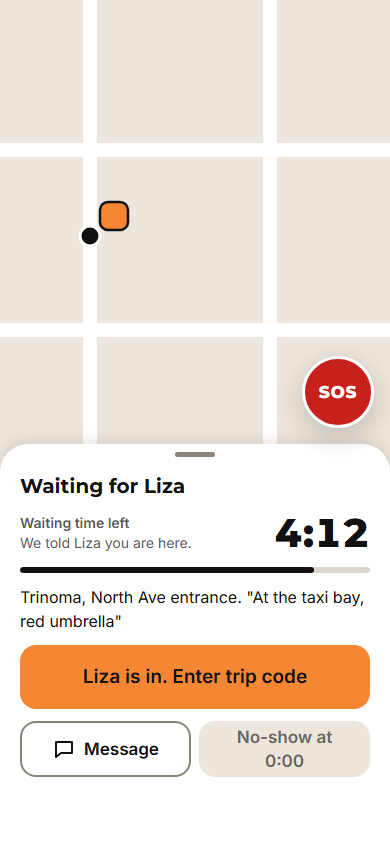 3.2 Waiting for rider
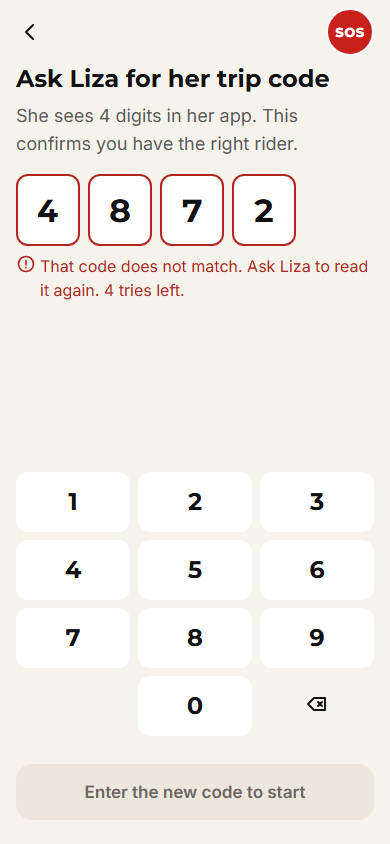 3.3 Enter trip code
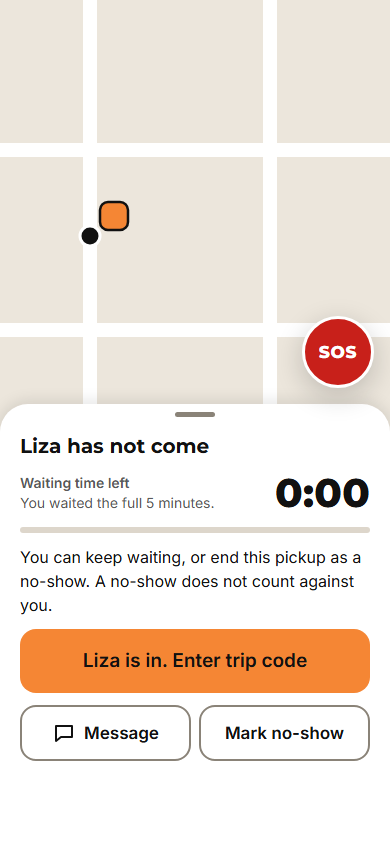 3.2 Rider did not show
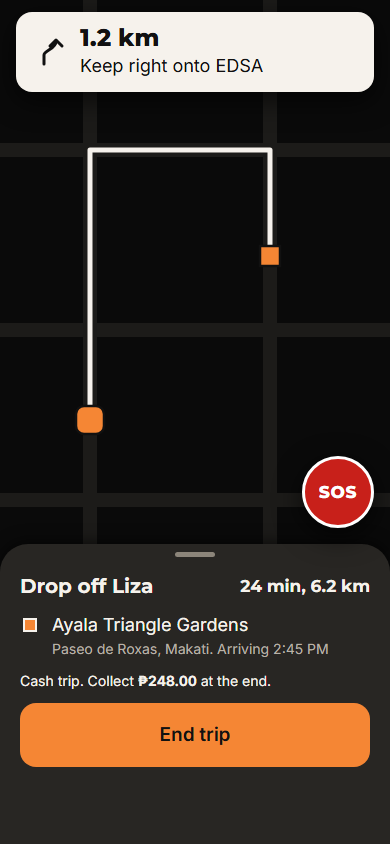 3.4 On trip
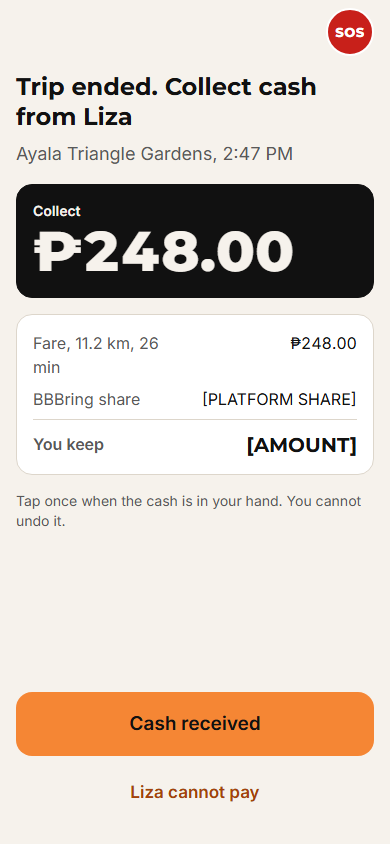 3.5 End trip, collect cash
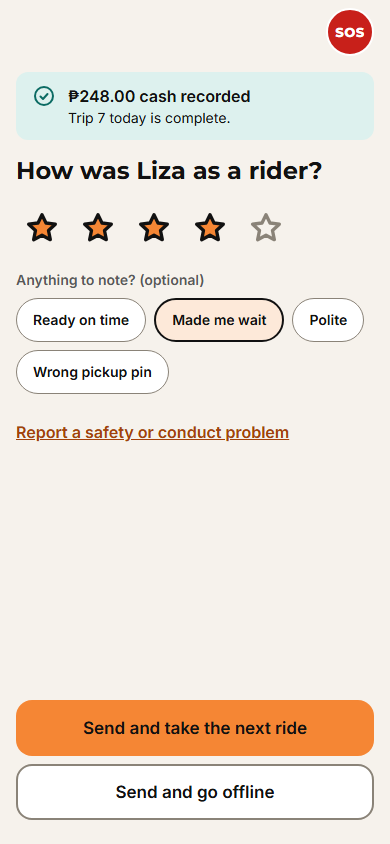 3.6 Rate rider
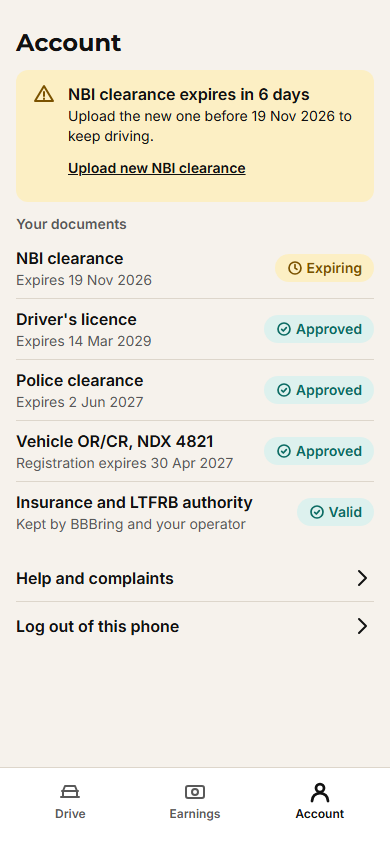
4. Earnings, SOS, documents
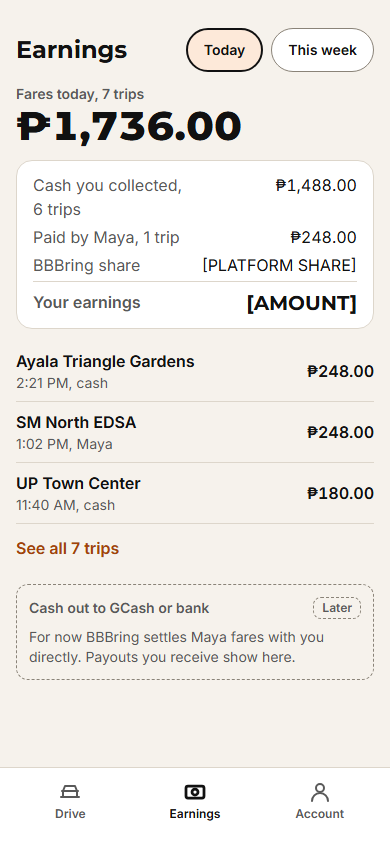
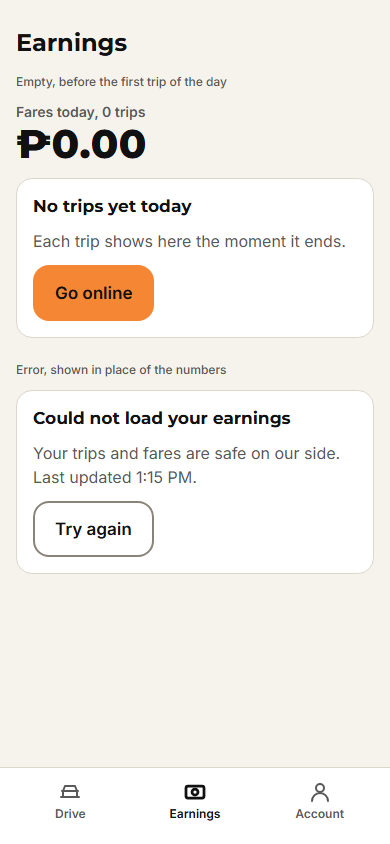
Admin web
What the operations team sees: the live map, SOS, approvals, trips, fares and reports.
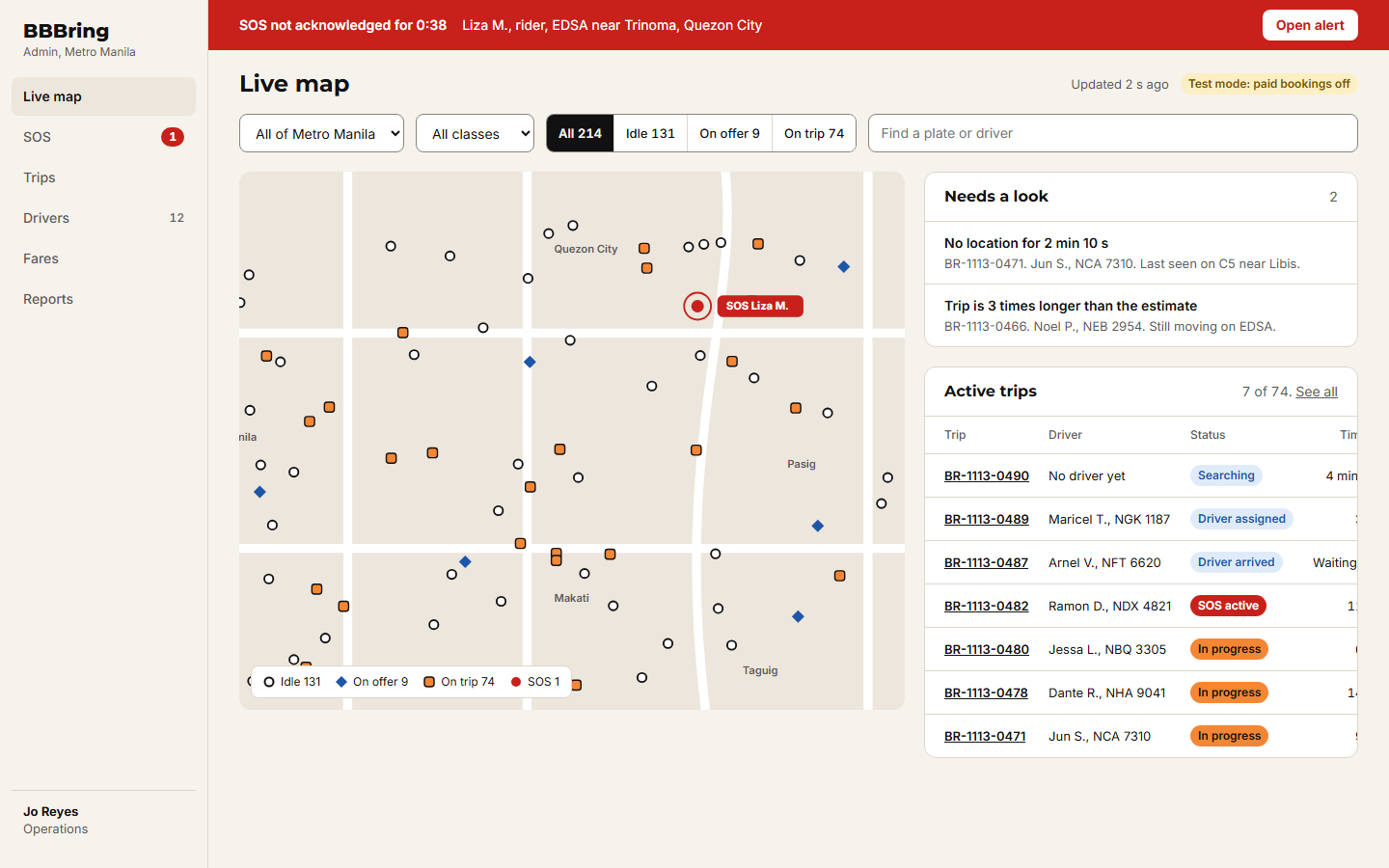
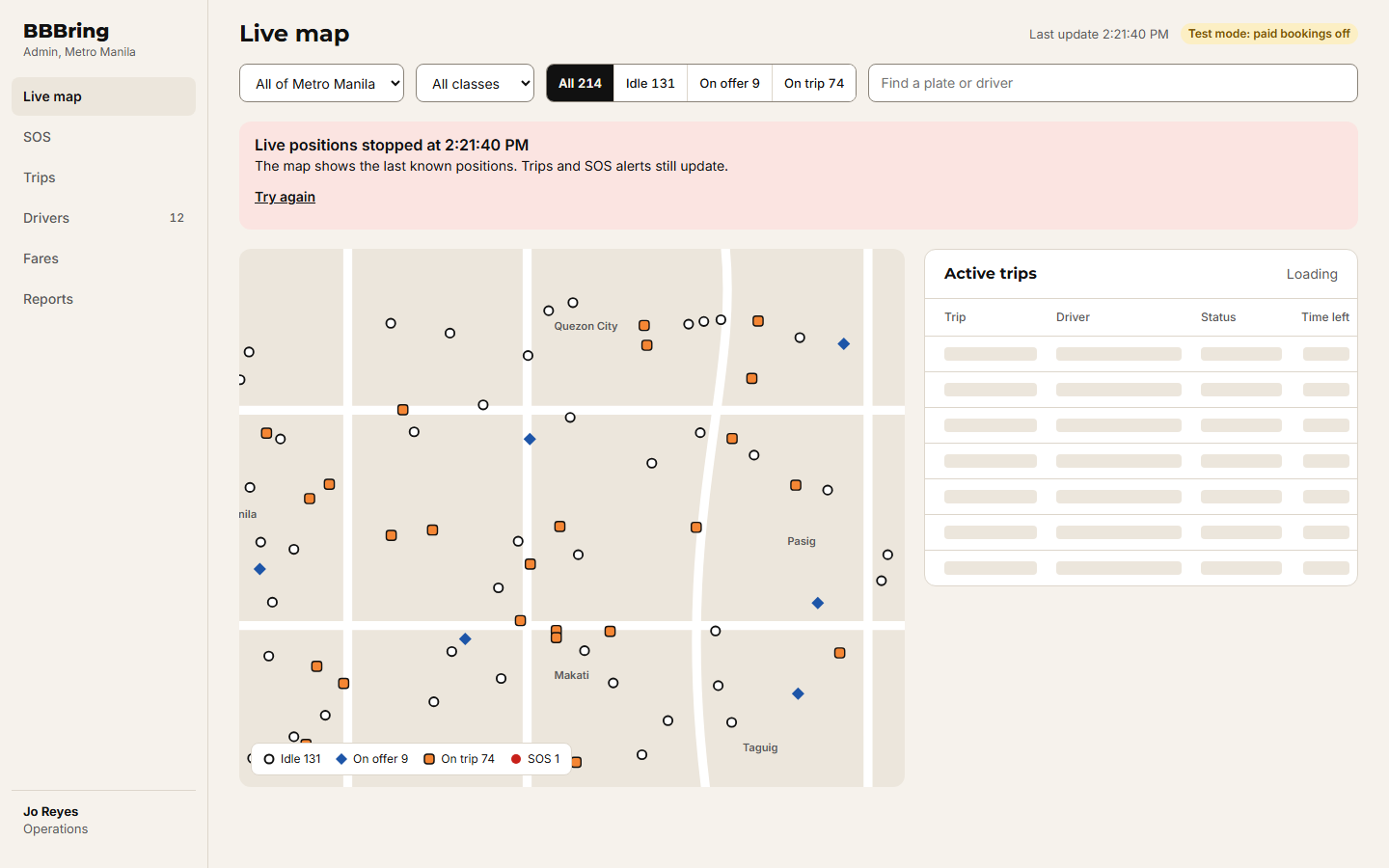
1. Live map
2. SOS console
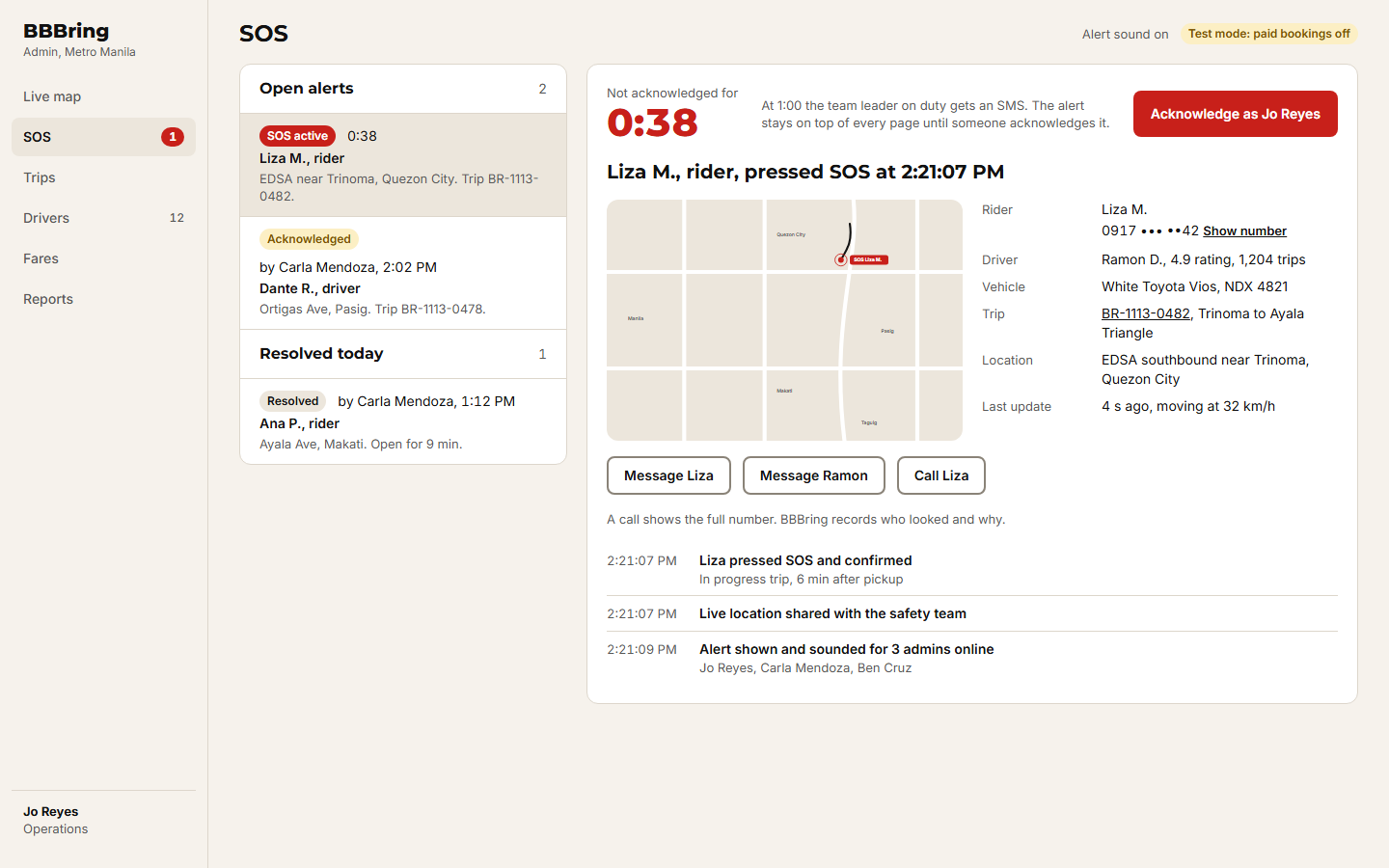 2.1 SOS: new alert
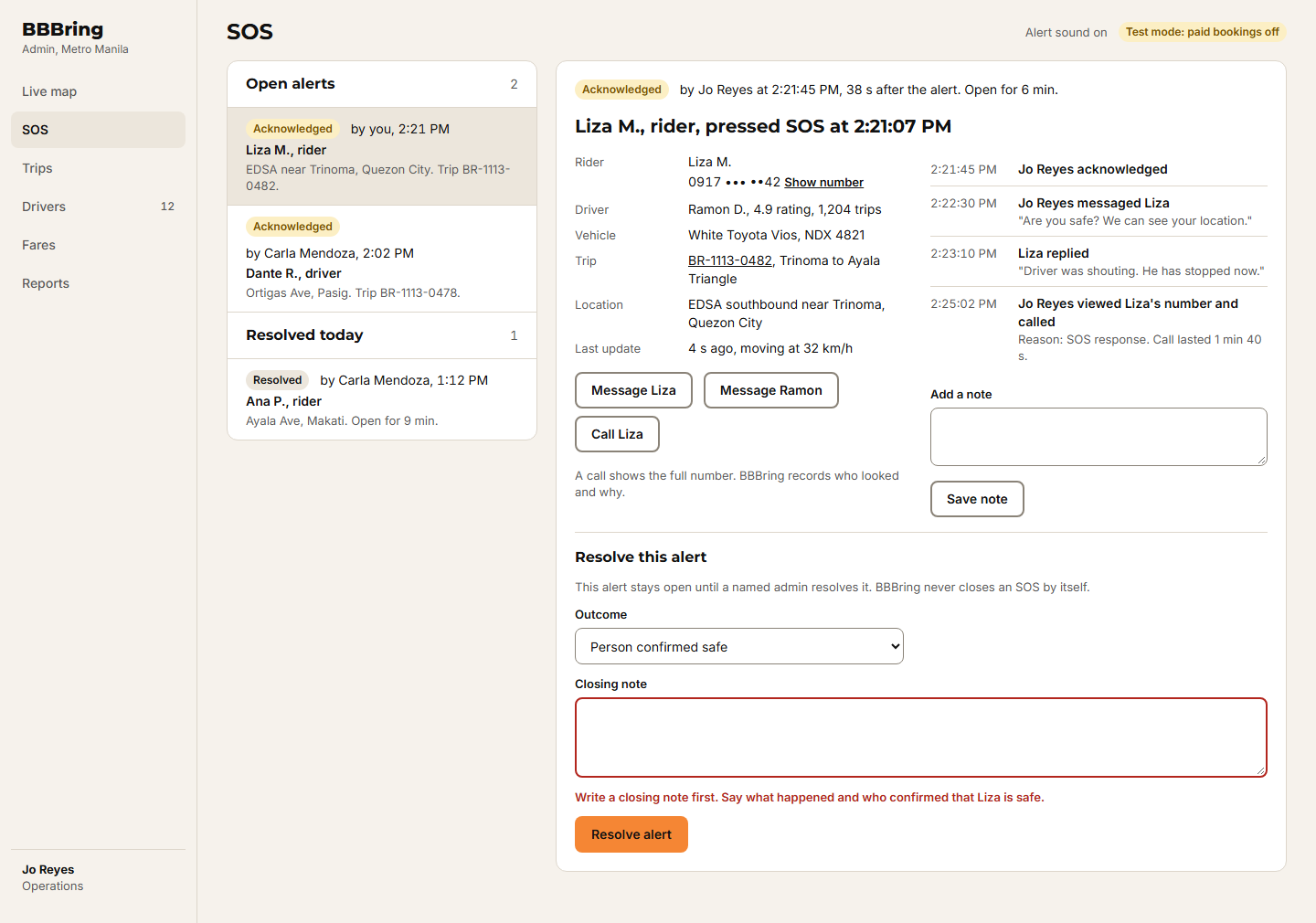 2.2 SOS: acknowledged, resolve needs a note
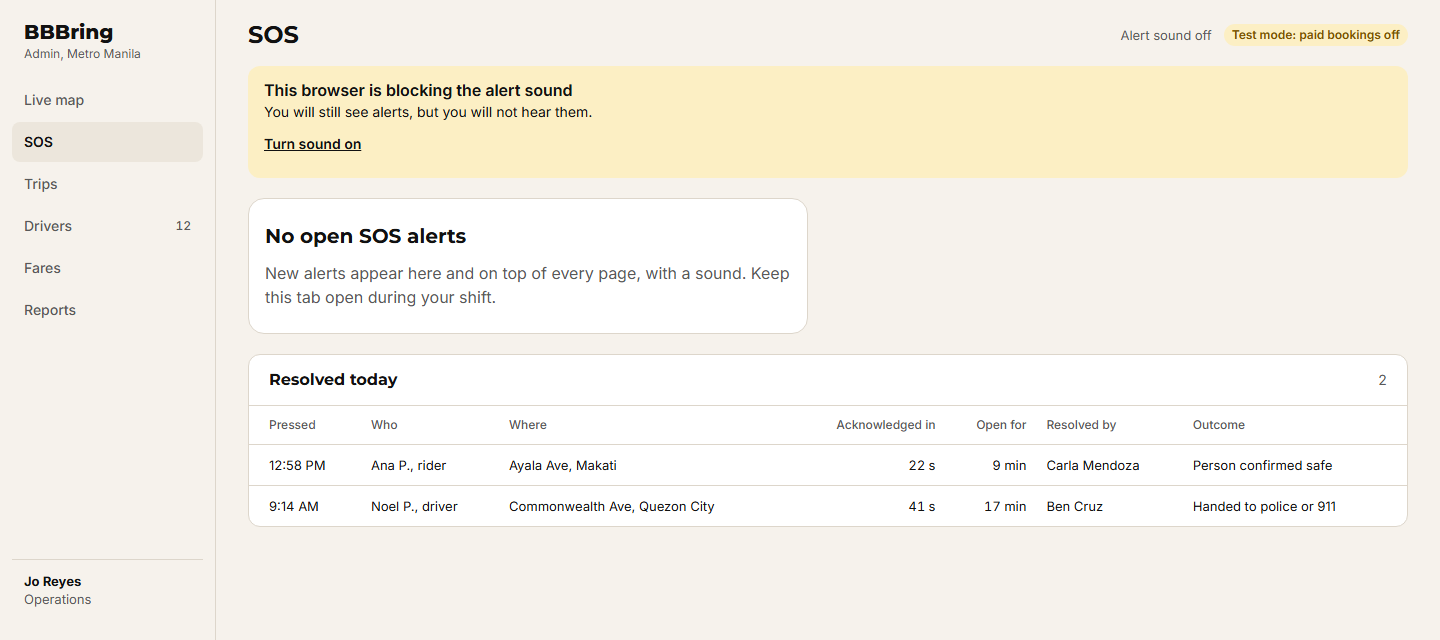 2.3 SOS: no open alerts, sound blocked
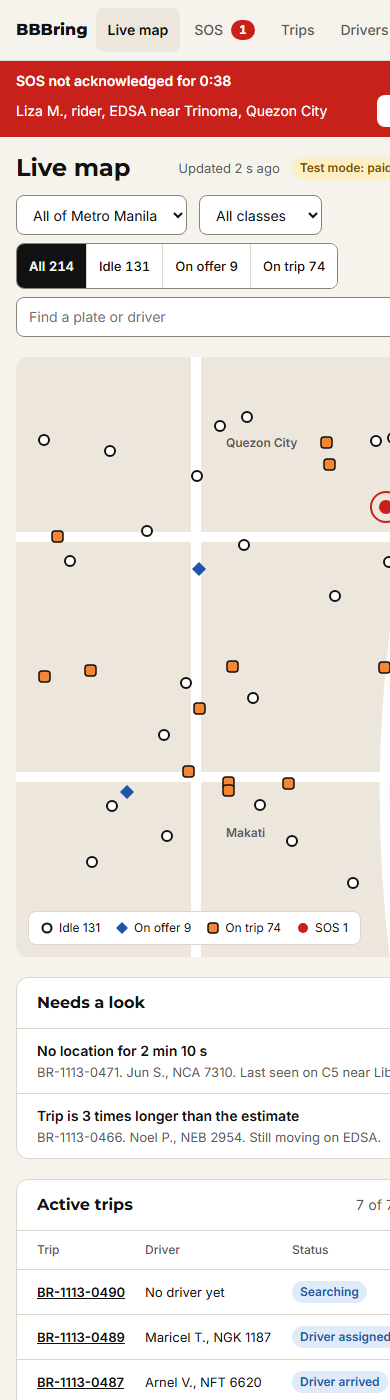
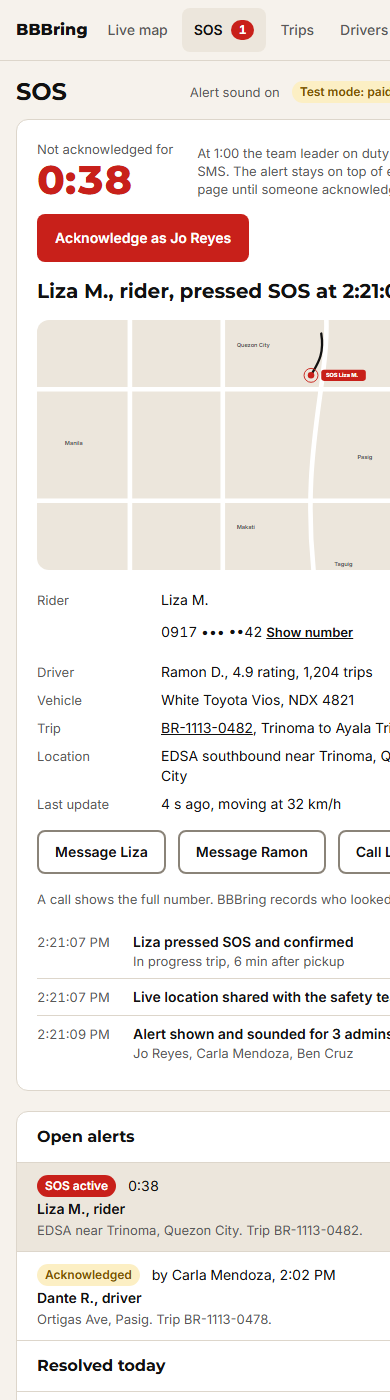 2.4 SOS: new alert on a phone
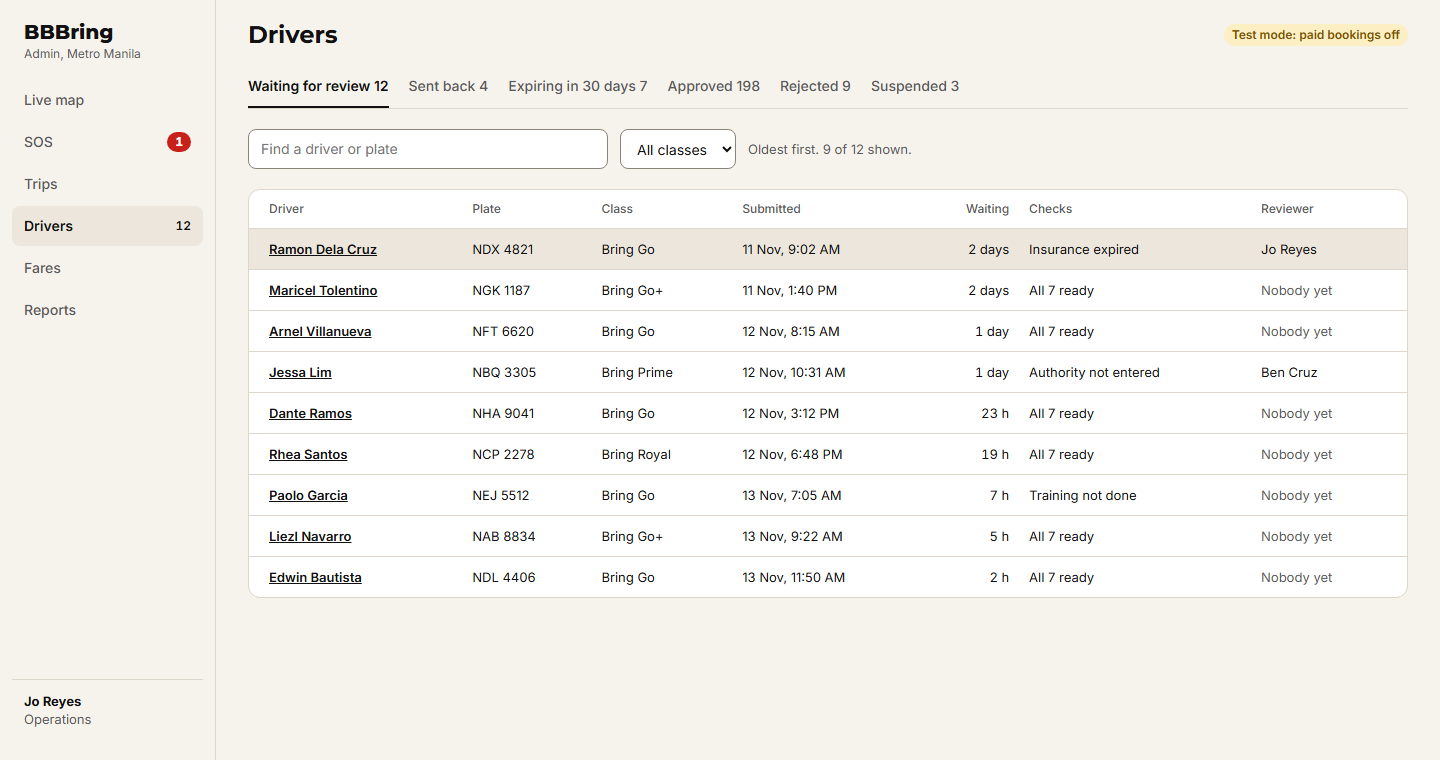
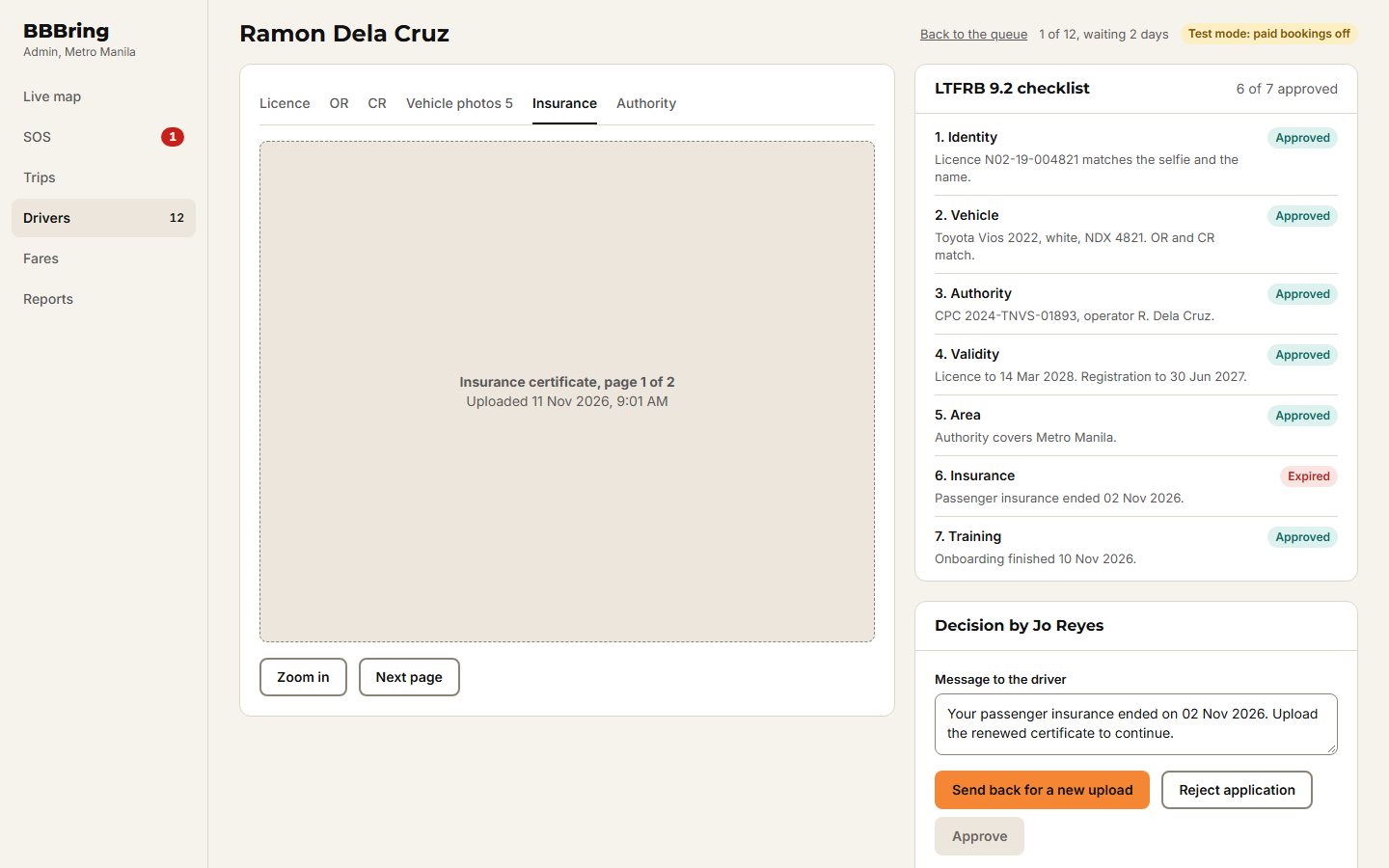
3. Driver approvals
4. Trips and manual adjustment
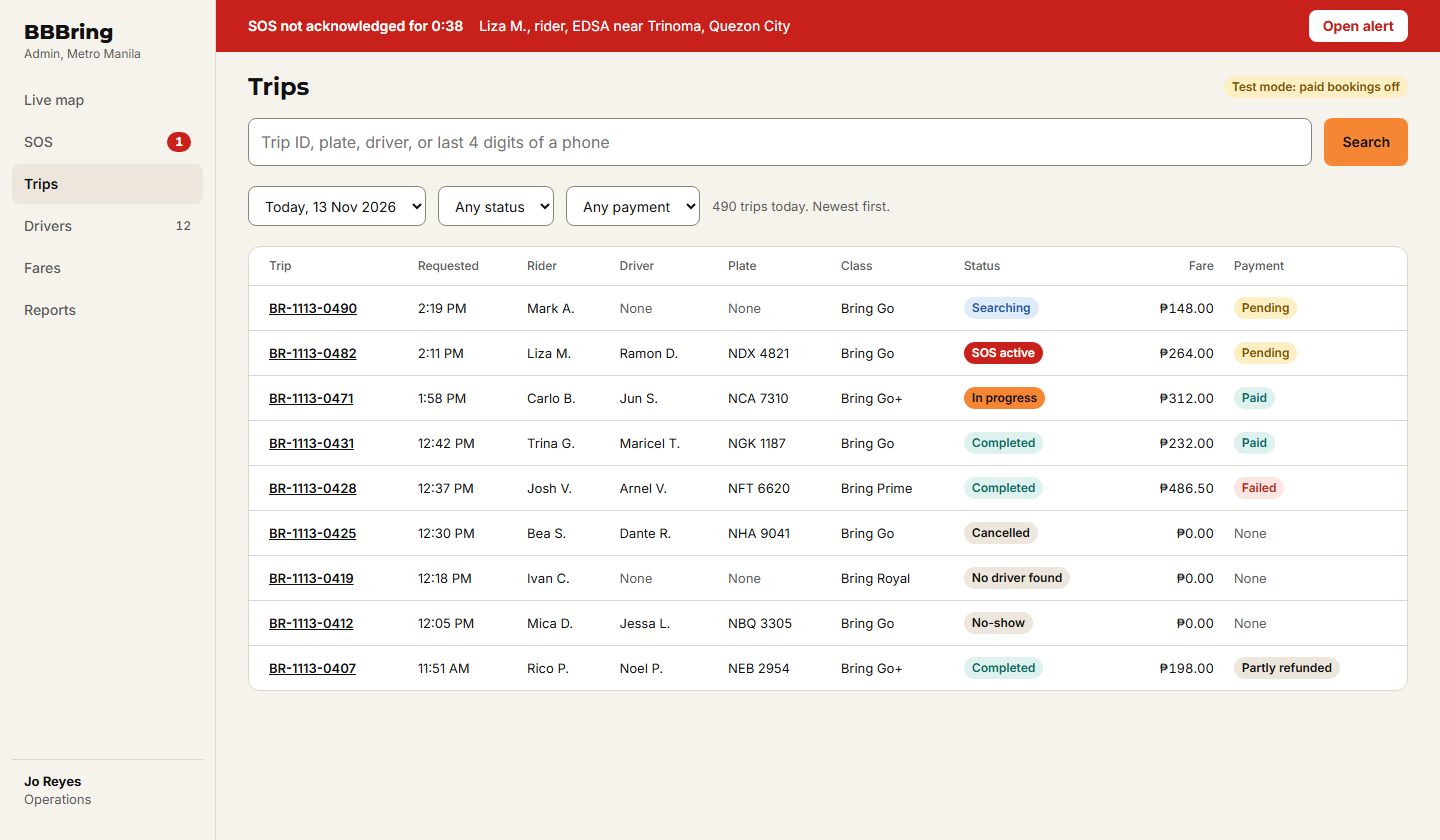 4.1 Trips: search
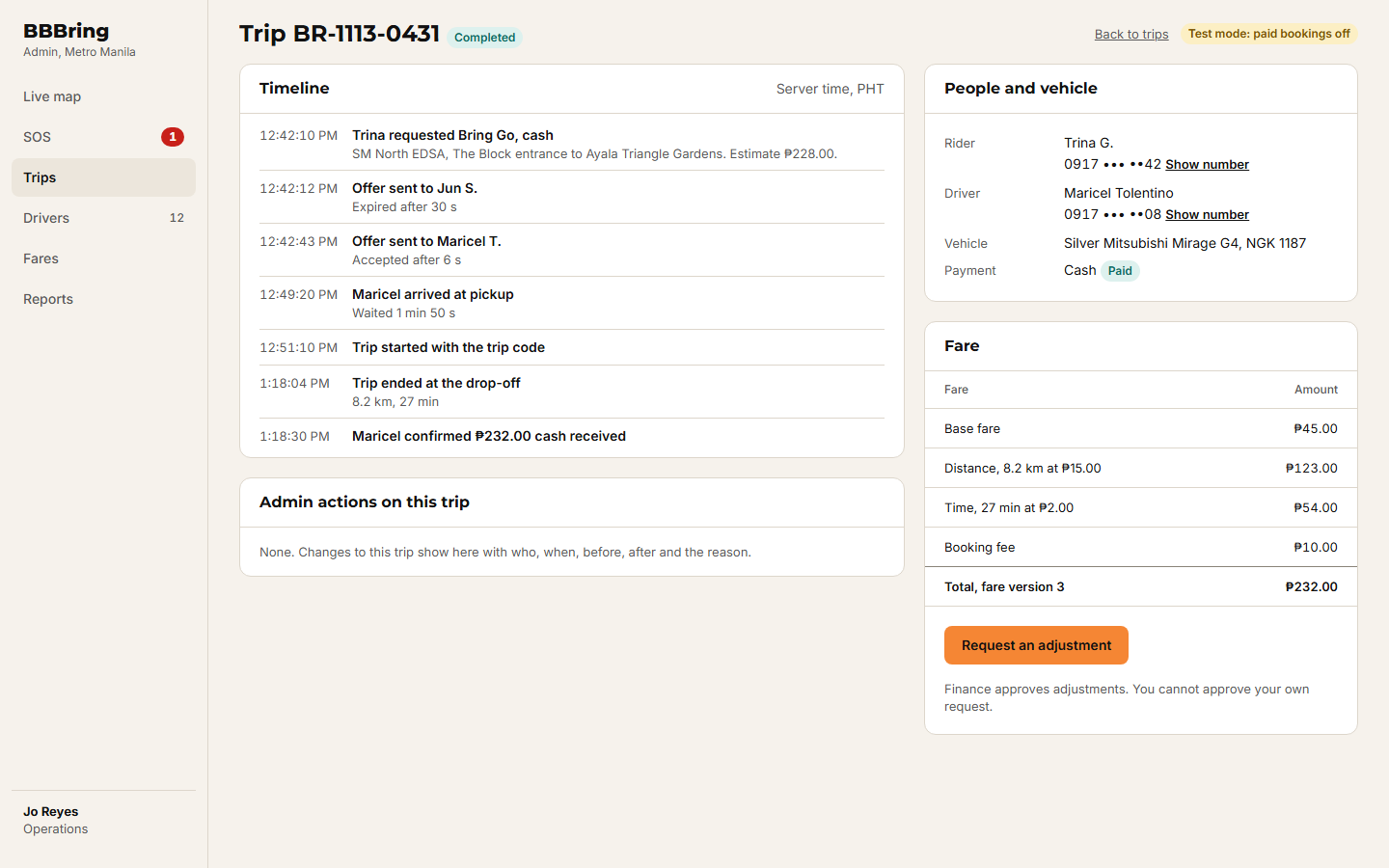 4.2 Trip detail: completed
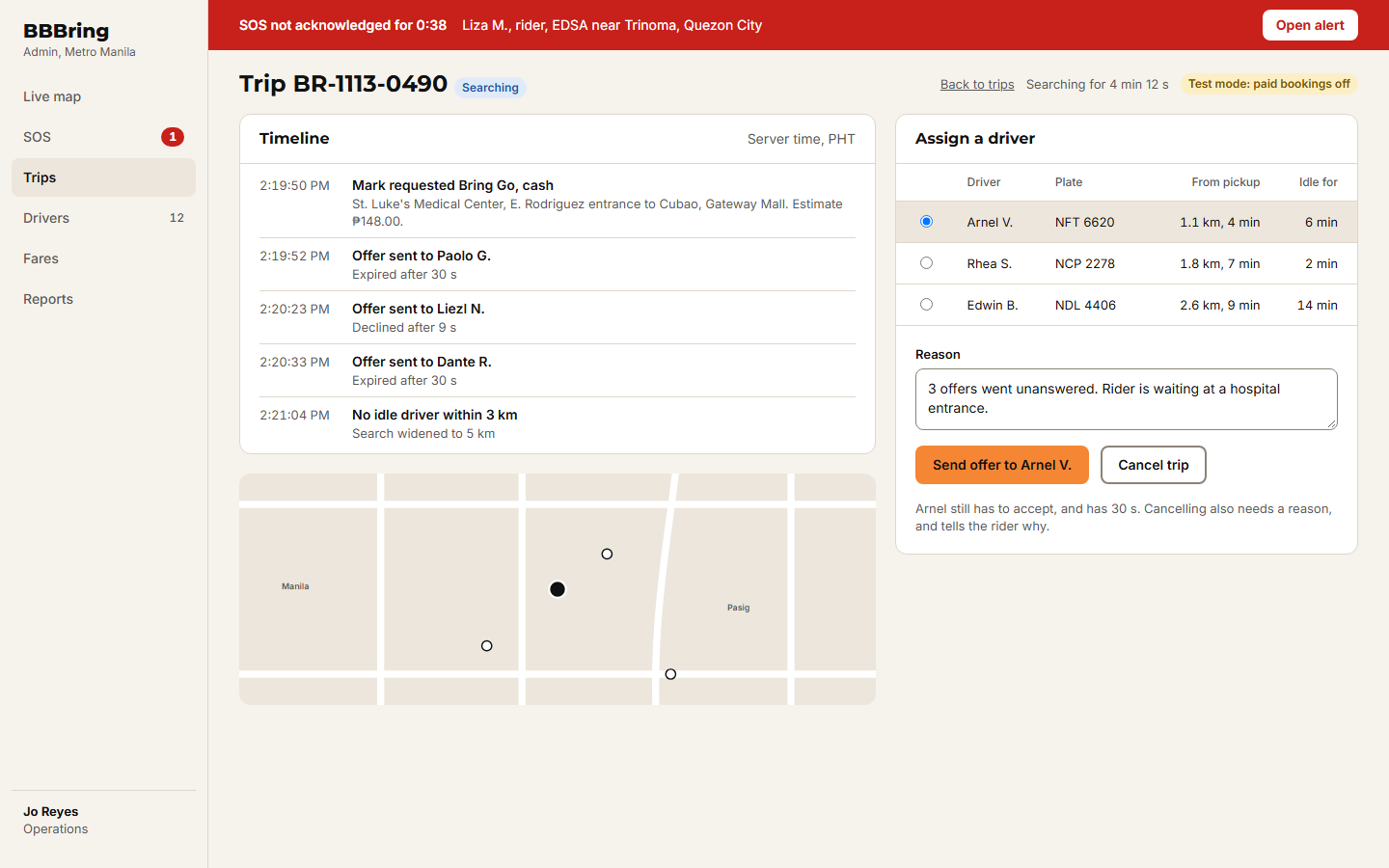 4.3 Trip detail: no driver yet, assign
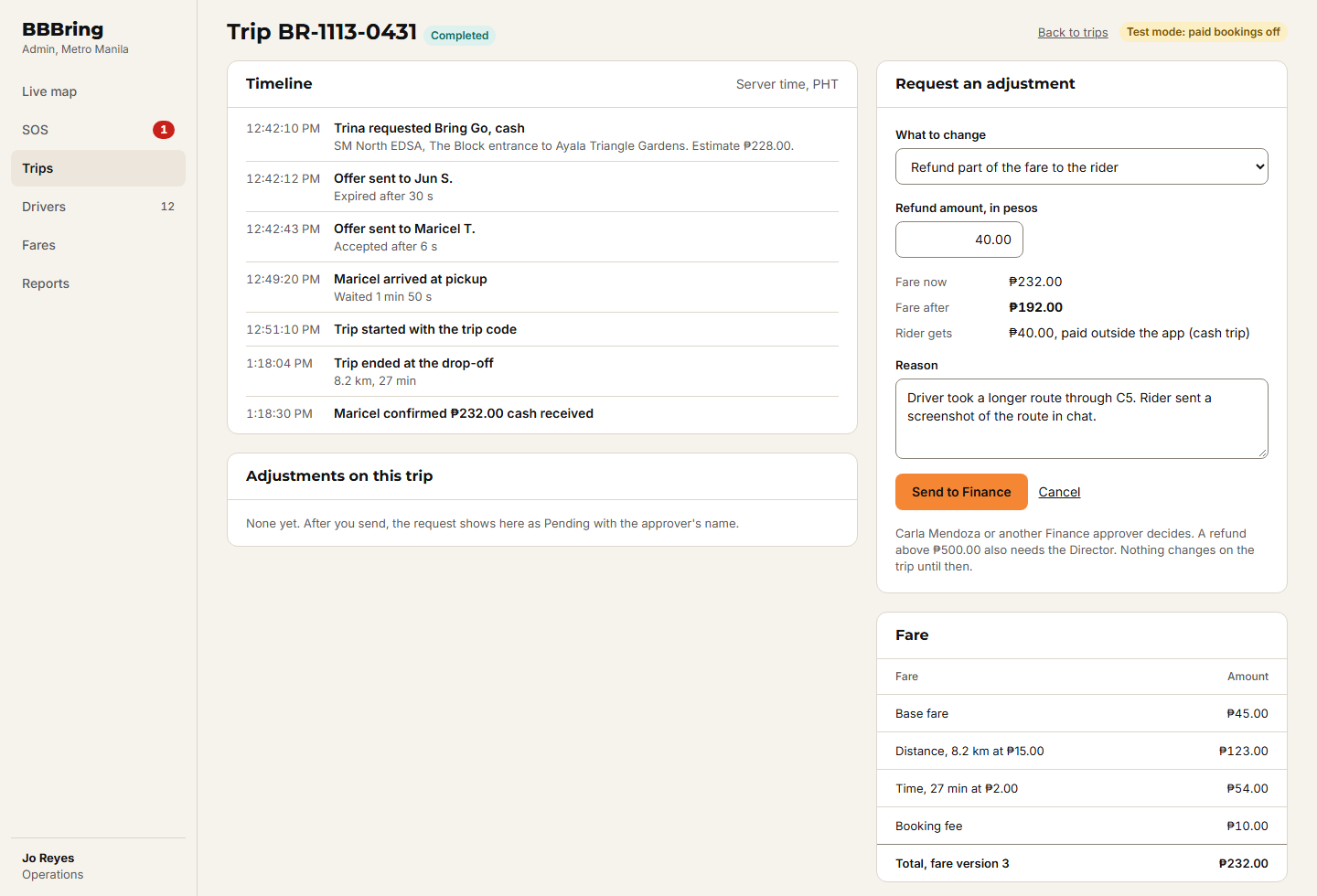 4.4 Trip detail: adjustment request
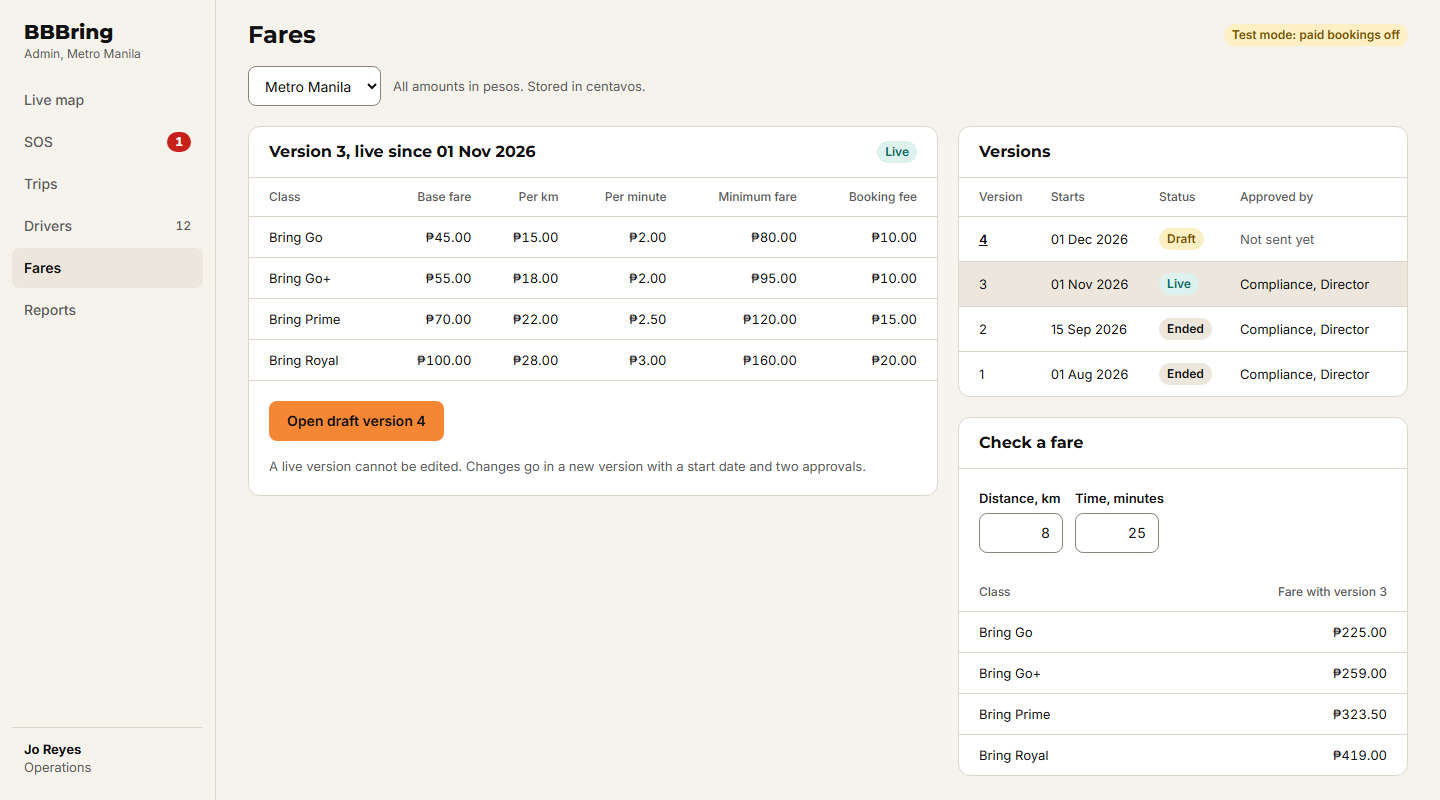
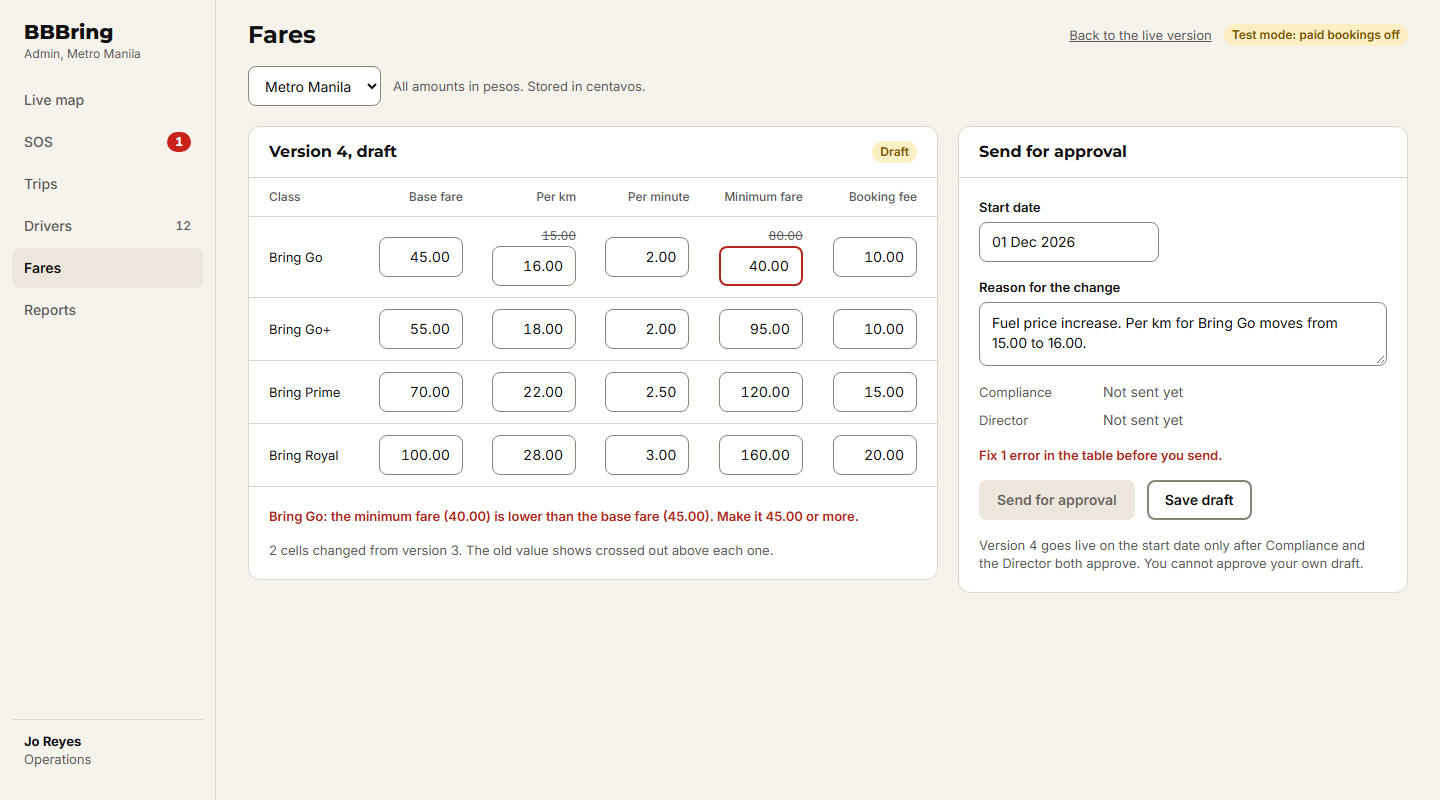
5. Fare matrix
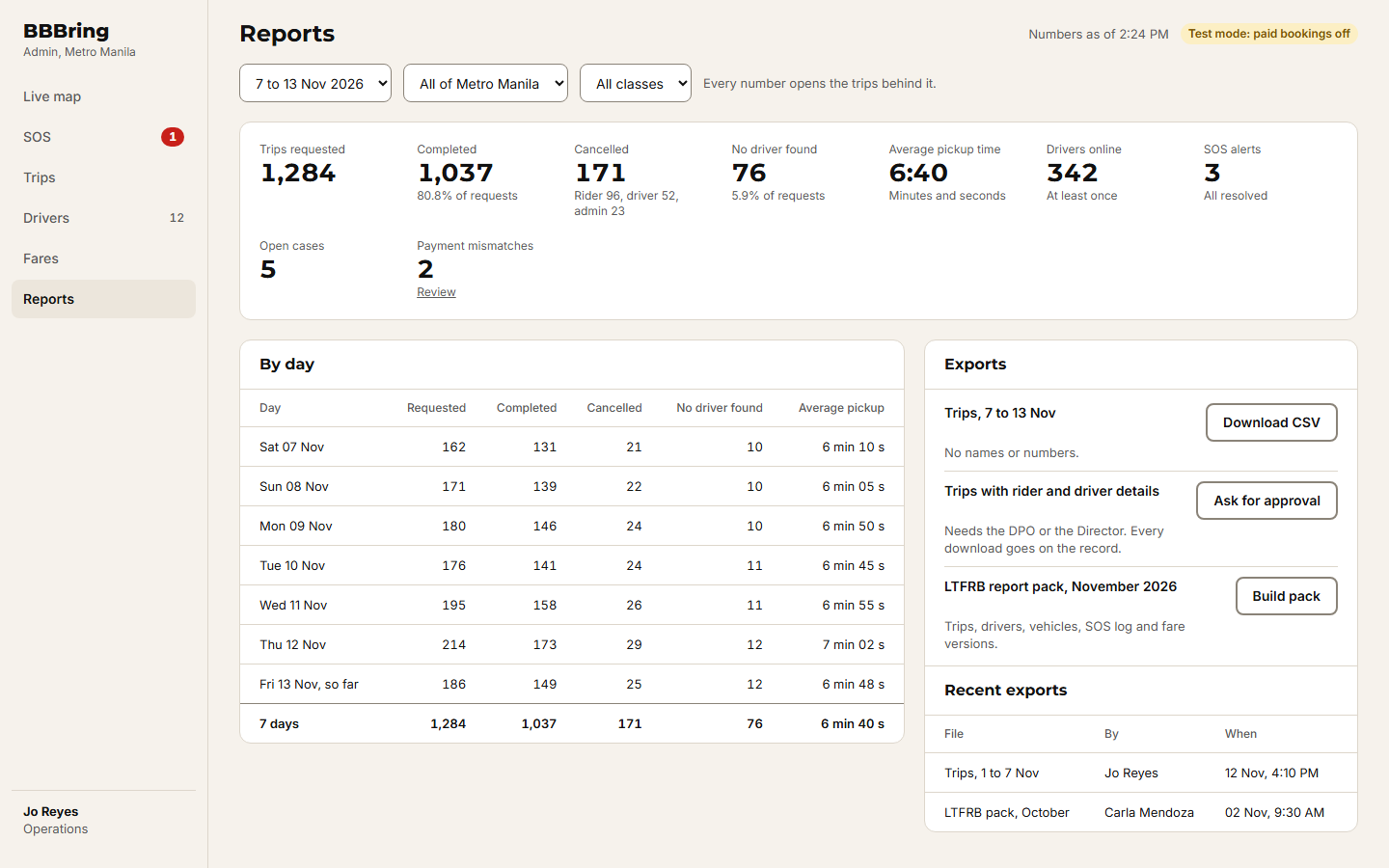
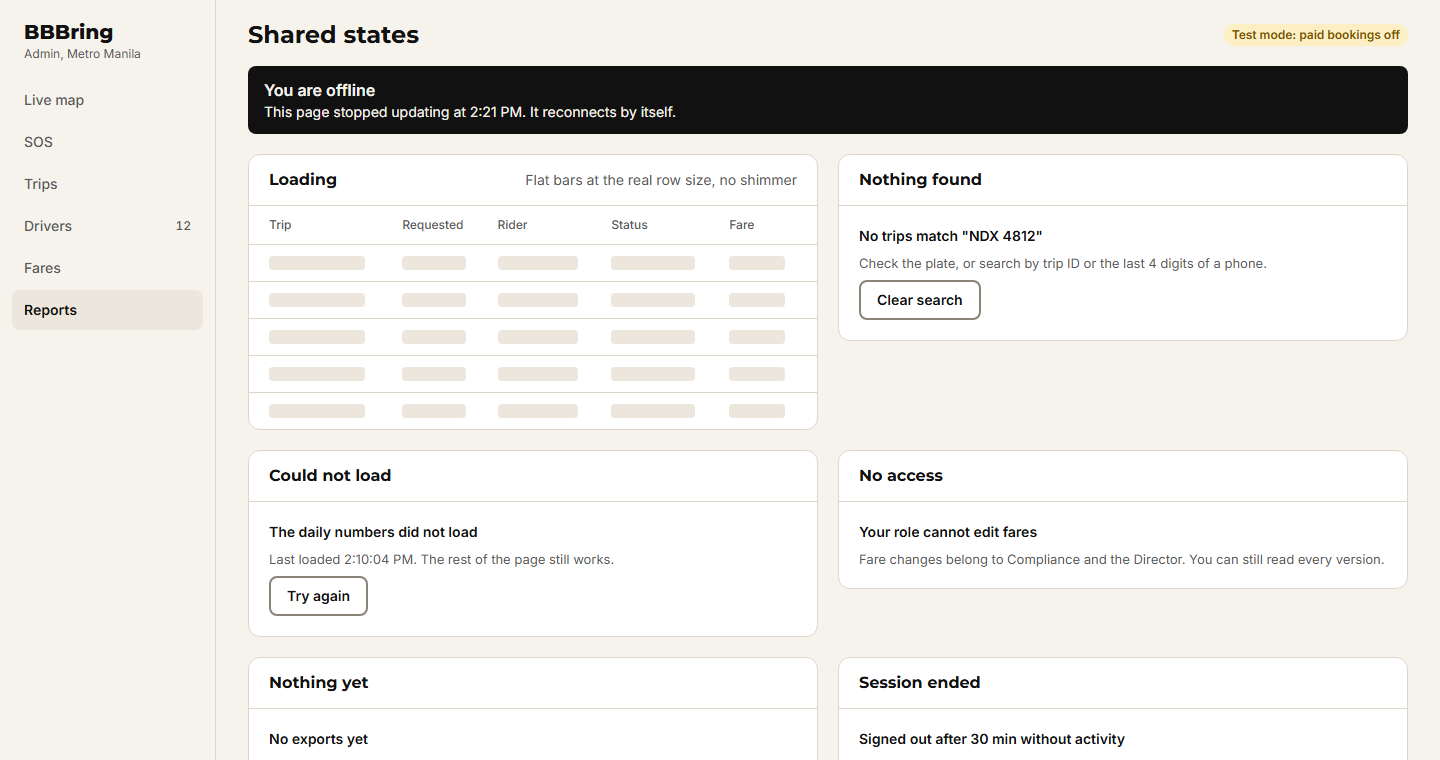
6. Reports and shared states
These are designs, not the working apps. Buttons inside a screen mostly do nothing. Where one screen leads to the next, the link works, so you can click through a whole journey. Names, plate numbers and peso amounts are made up for the drawings. Use your browser back button to come back to this page.